All guidesGuide
Uploading a match
Wondering how to upload match recordings to the zone14 Cloud? You'll find the answer here.
This guide walks you through the steps to upload your match recordings to the zone14 platform.
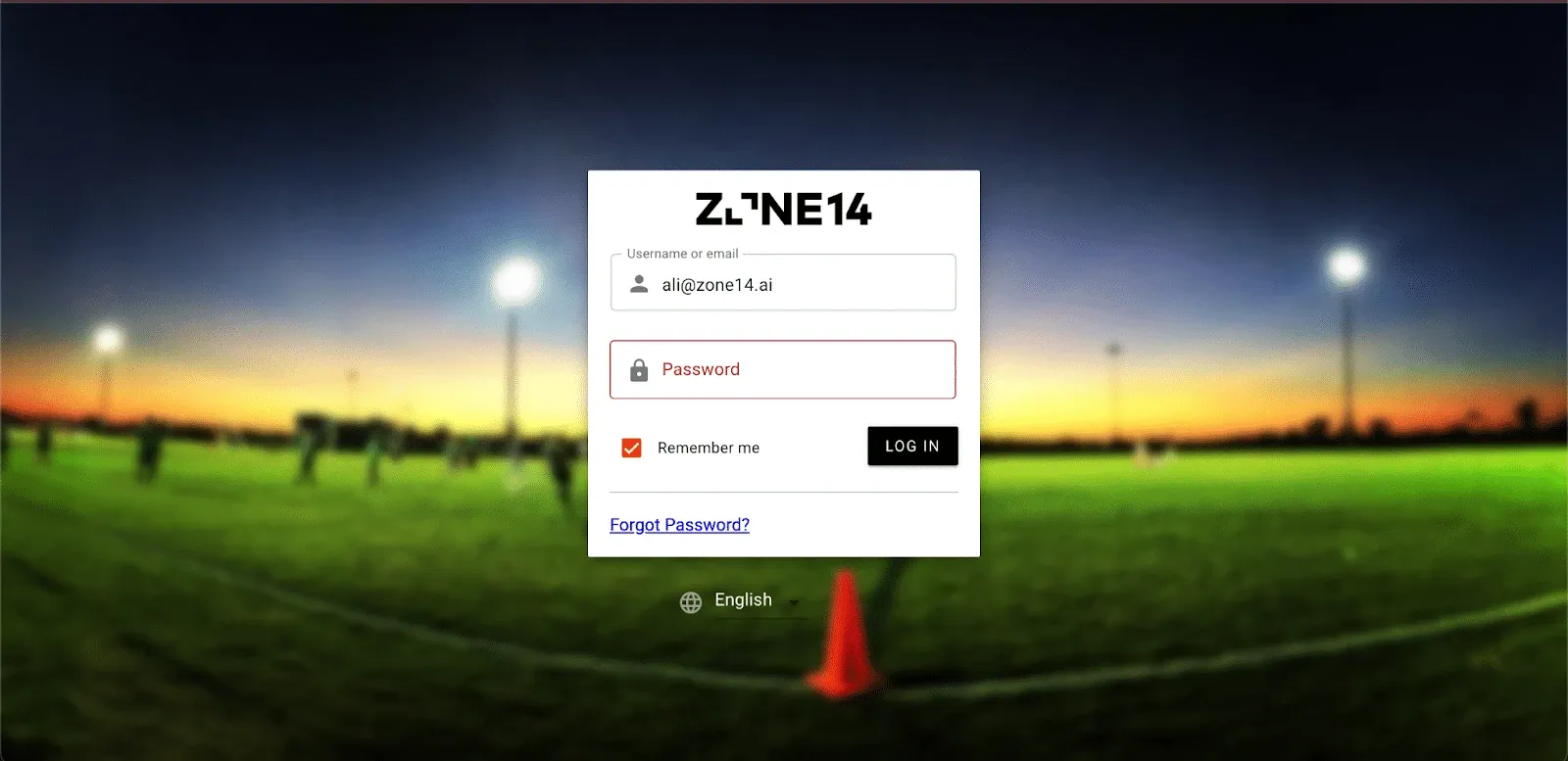
- Log in to the REPLAY app. This takes you to your club’s homepage.
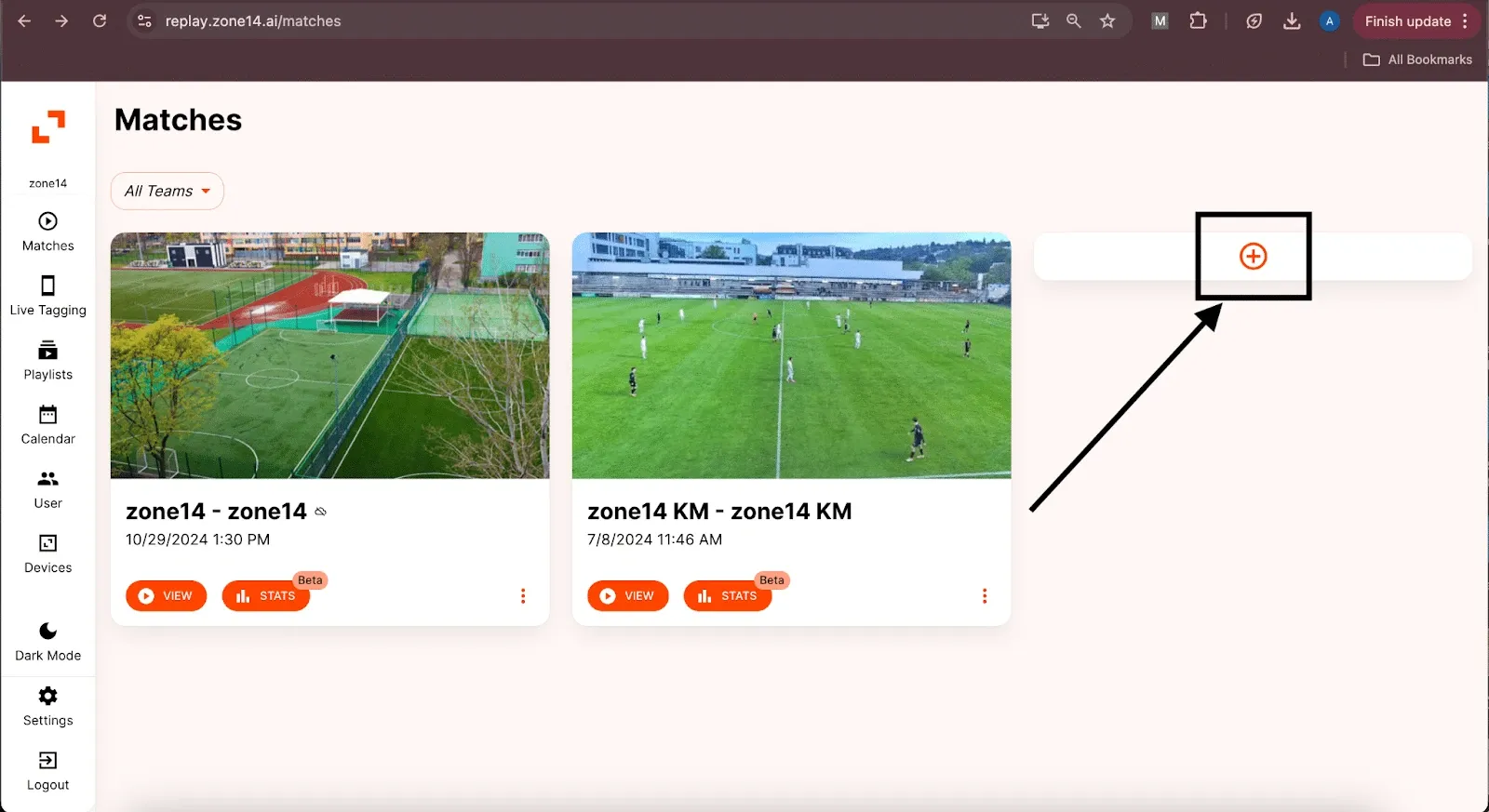
- On your club’s homepage, look for the “+” sign and click on it. If you can’t see it because of the number of matches, scroll all the way down.
- After you click the “+” sign, a window appears. Select the home and away team and, if necessary, schedule the date and time of your match.
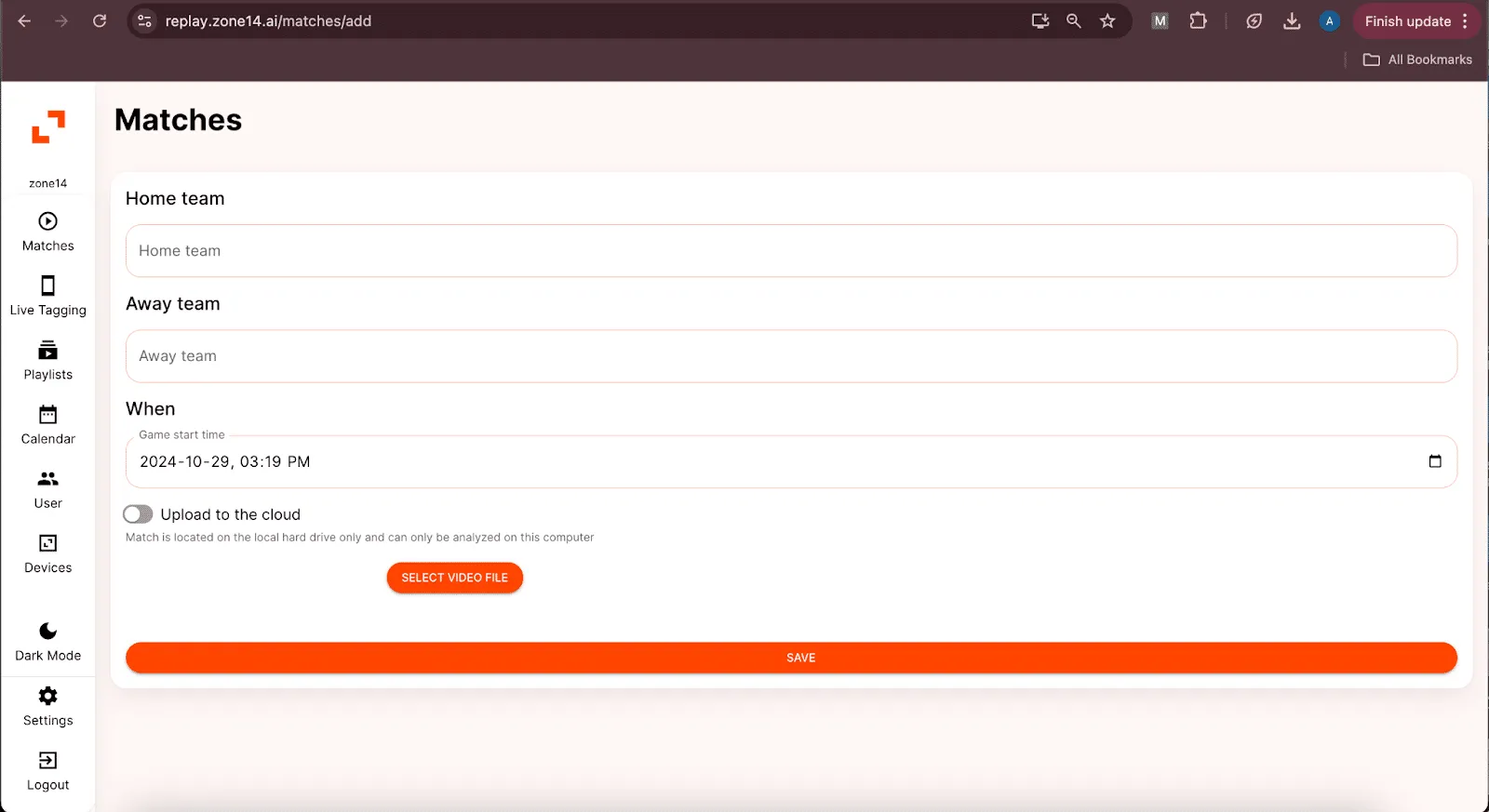
- Next, click the “Select video file” button.
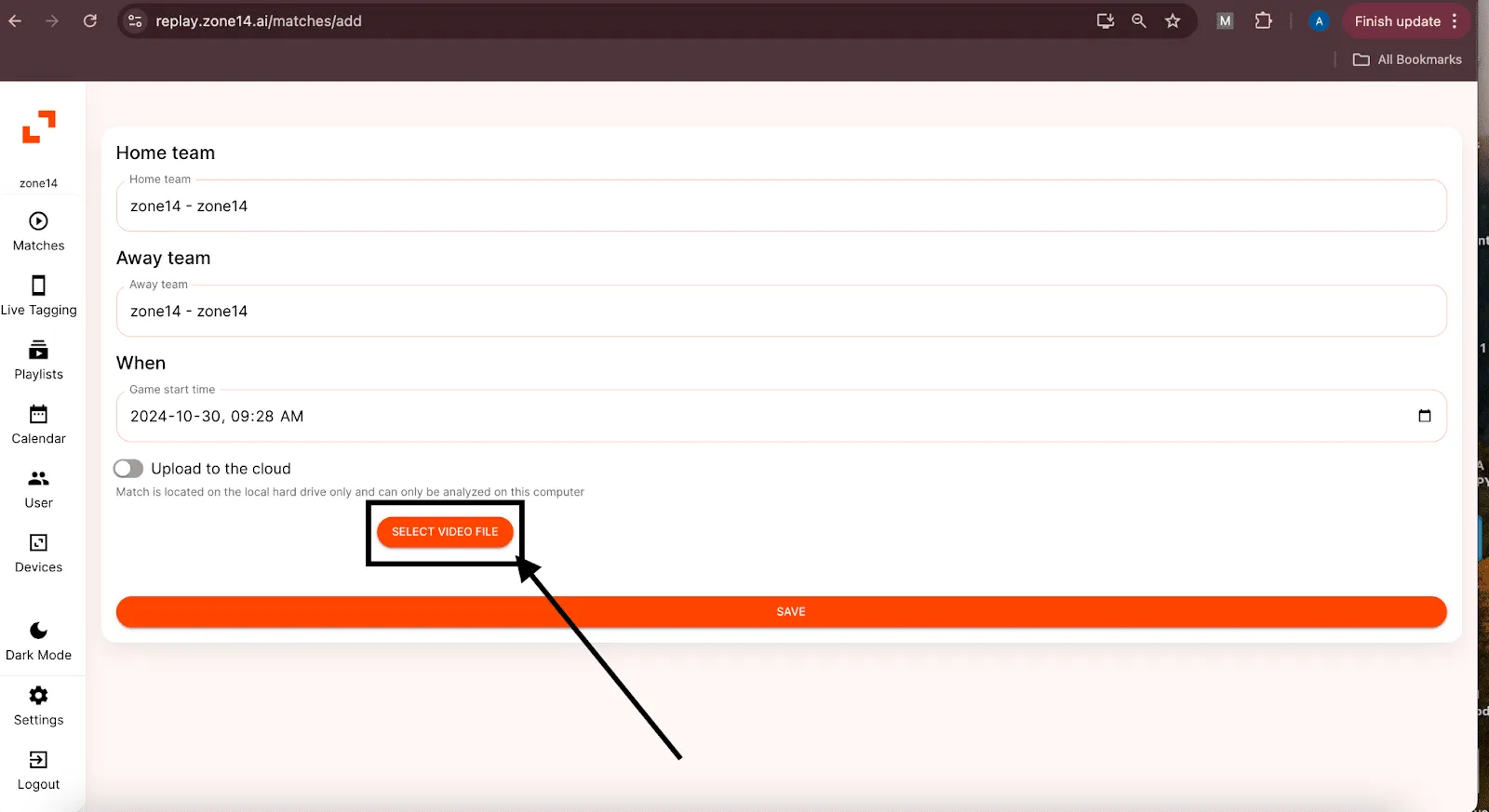
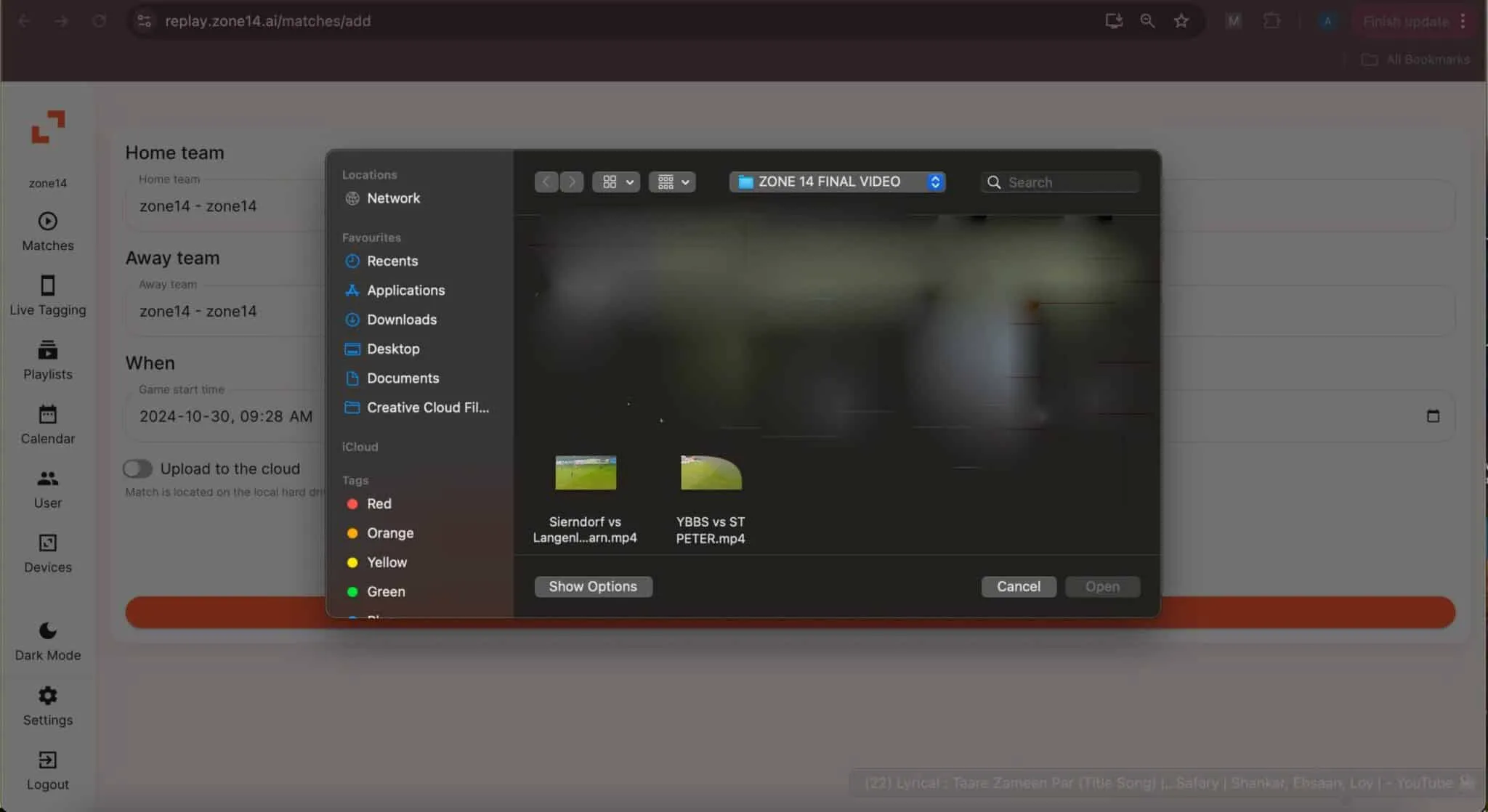
- A window appears asking you to select a video file. Choose the file you want to upload.
- After selecting the video file, the title will appear here.
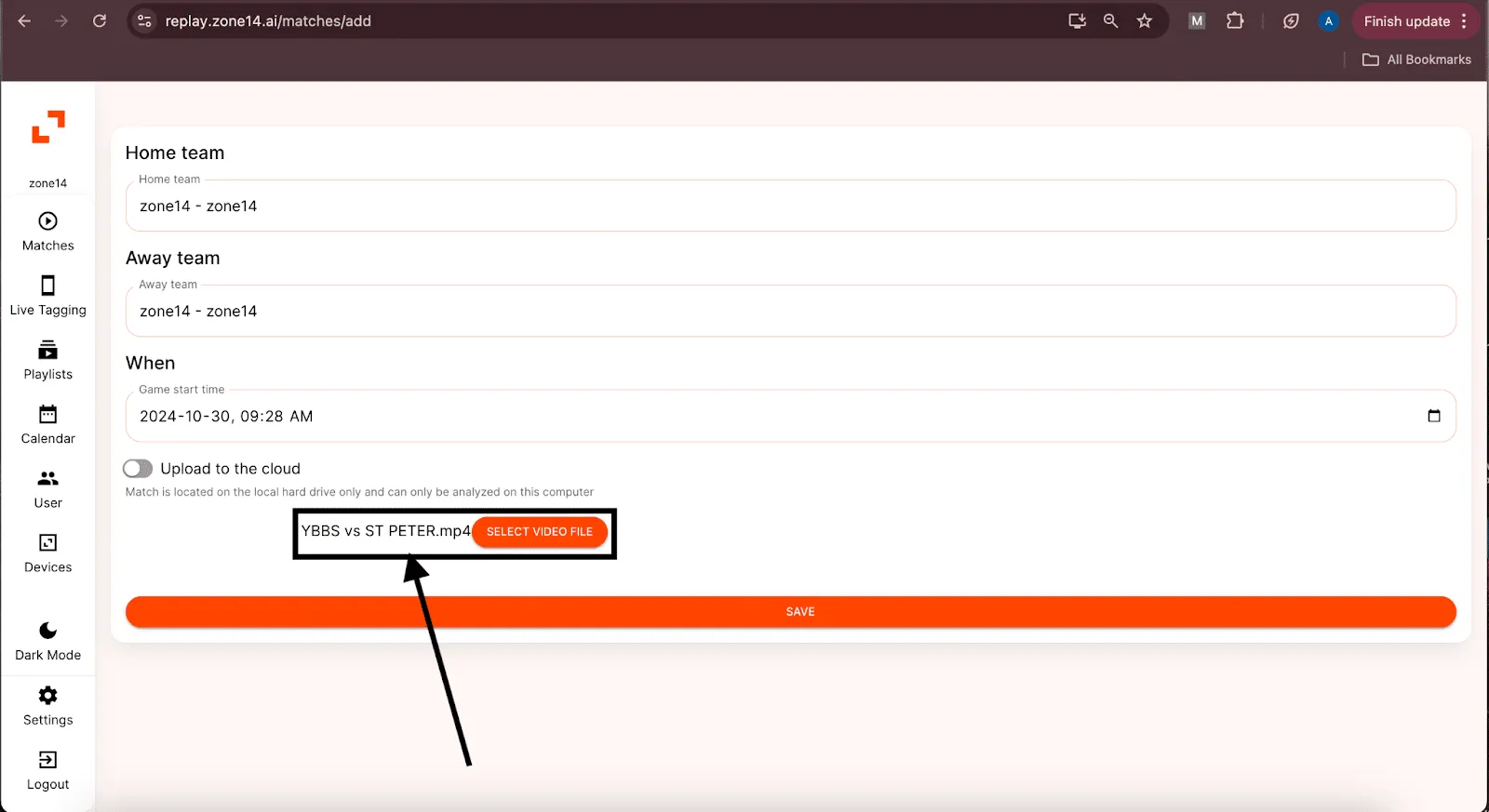
- Click “Save”. You’re taken to the homepage, where the uploaded video appears. That’s it!