All guidesGuide
Upload a match via link
Are you wondering how to upload a match to zone14 REPLAY via a link? This step-by-step guide shows you how it works.
This guide shows you how to upload a match to REPLAY via a link. Just follow these easy steps, and you’ll have your match linked and ready to go in no time!
-
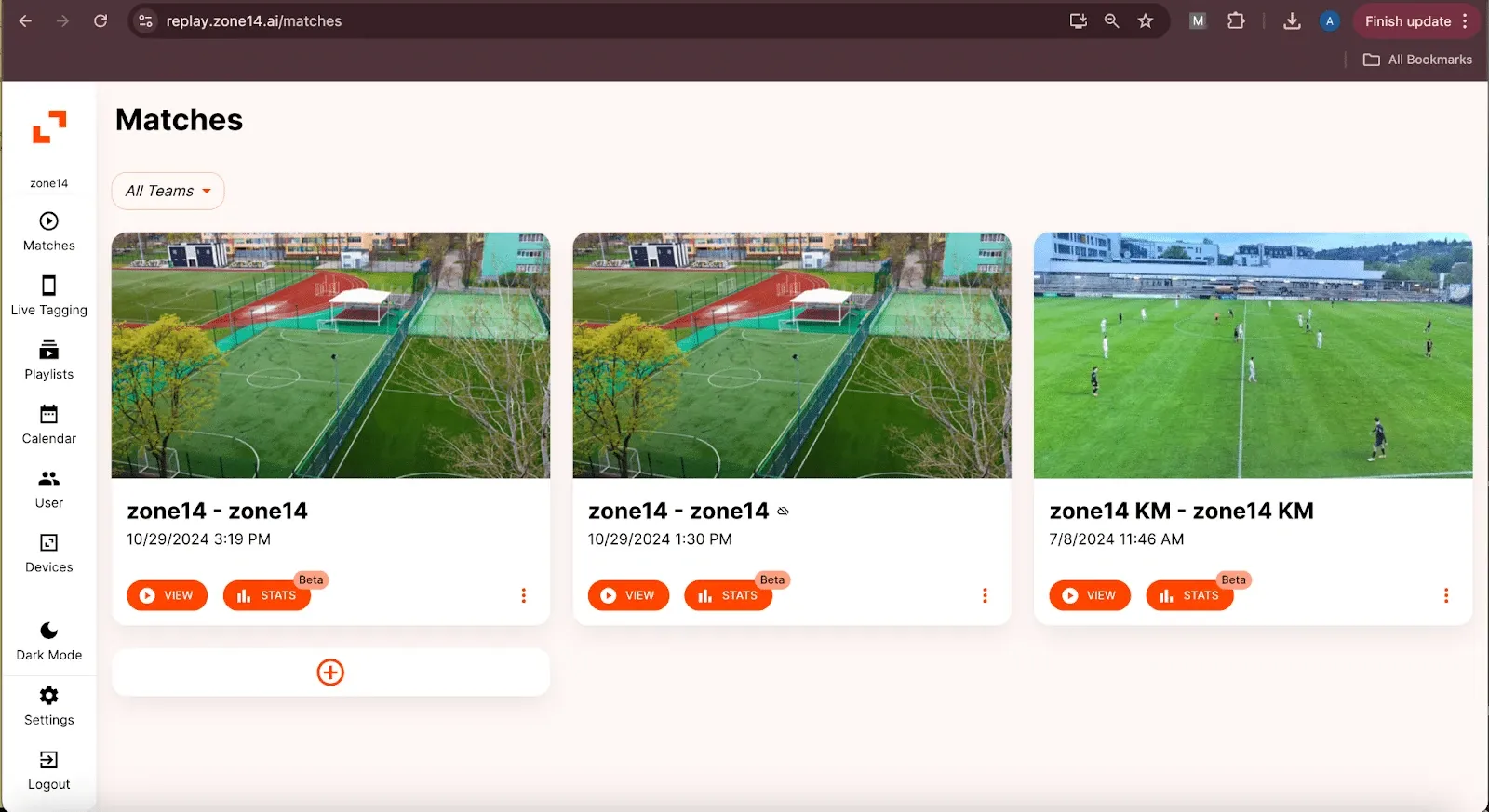
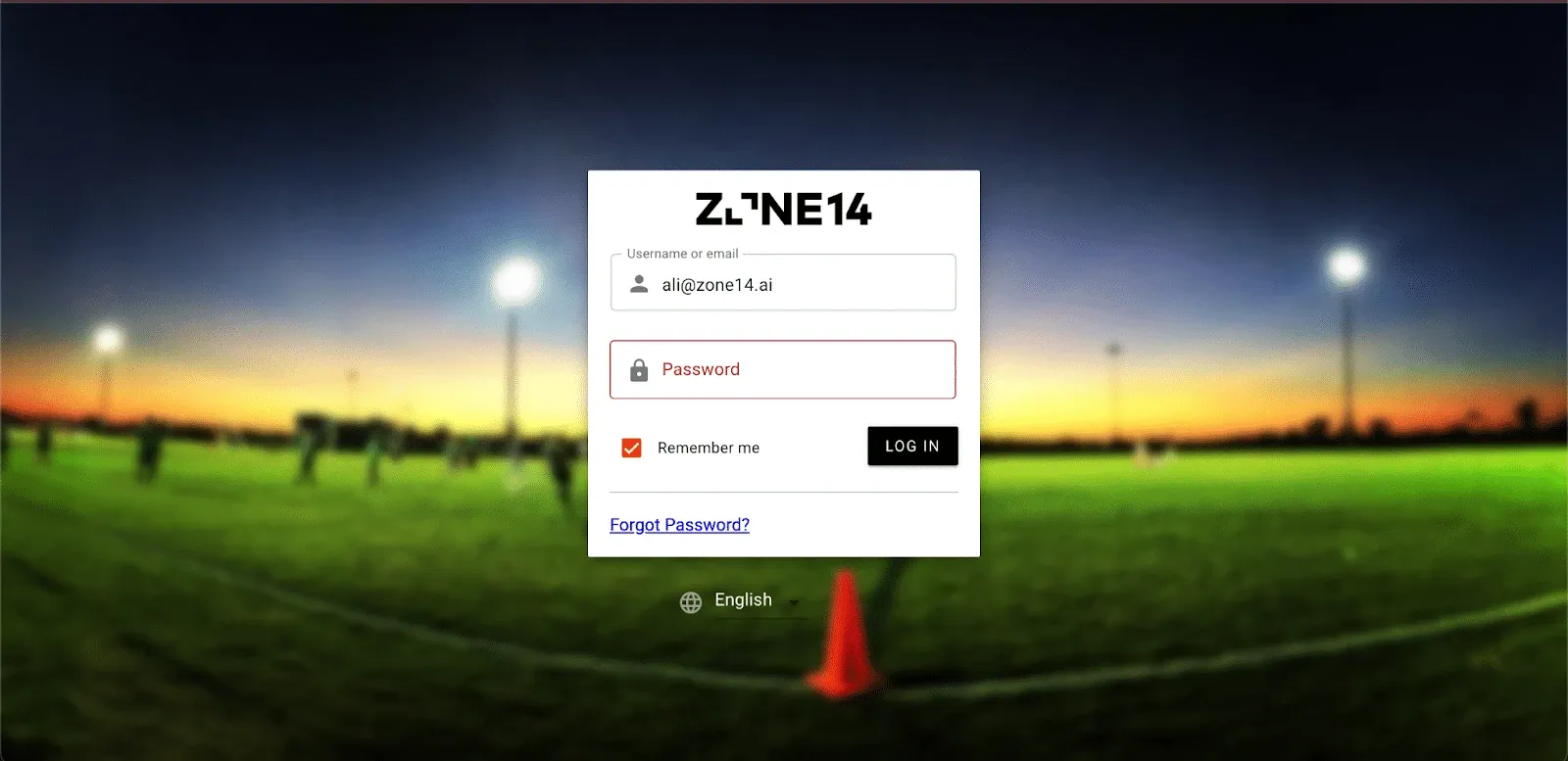
Log in to the REPLAY app. This takes you to your club’s homepage.
-
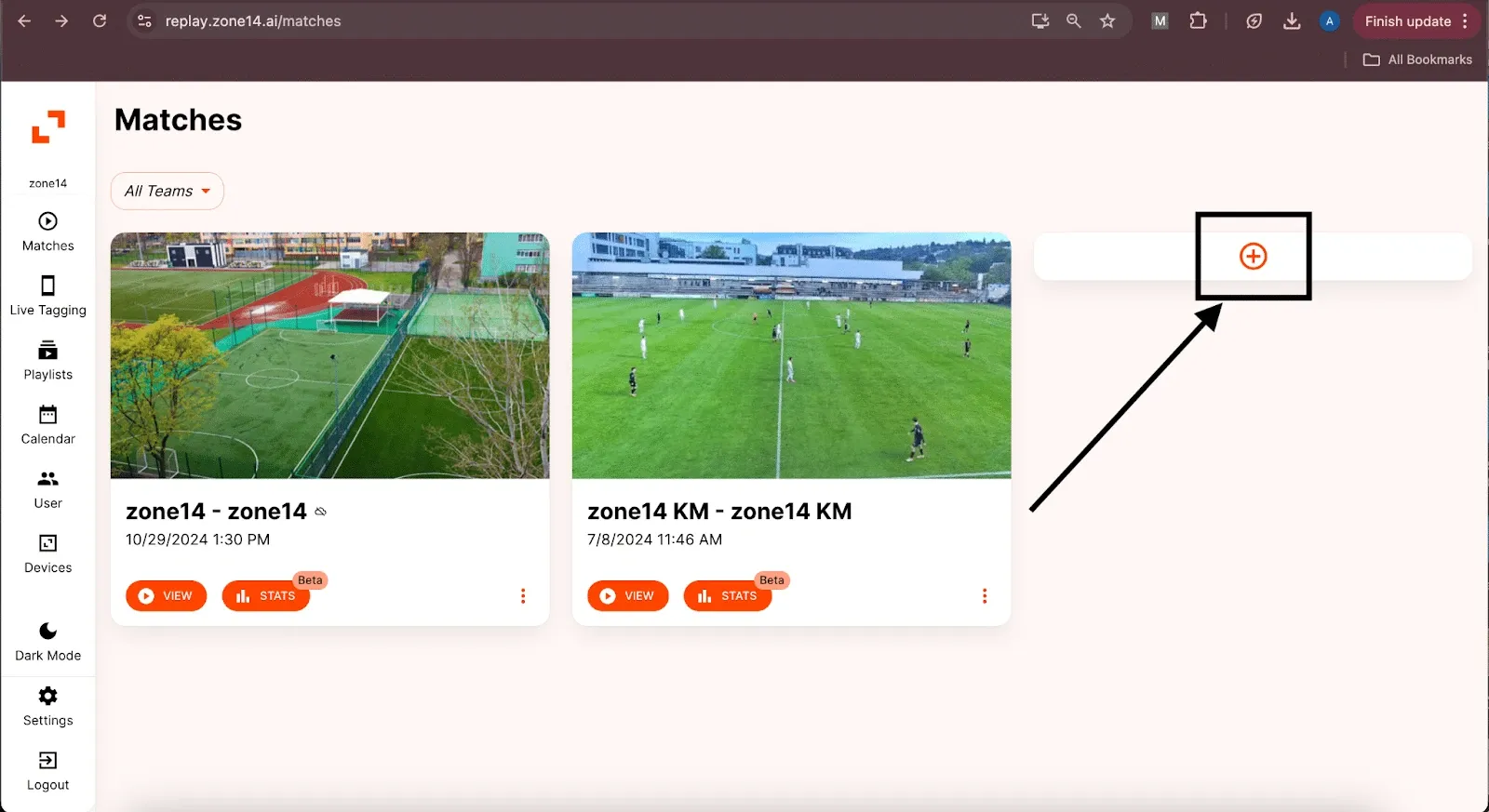
On your club’s homepage, look for the “+” sign and click on it. If you can’t see it because of the number of matches, scroll all the way down.
-
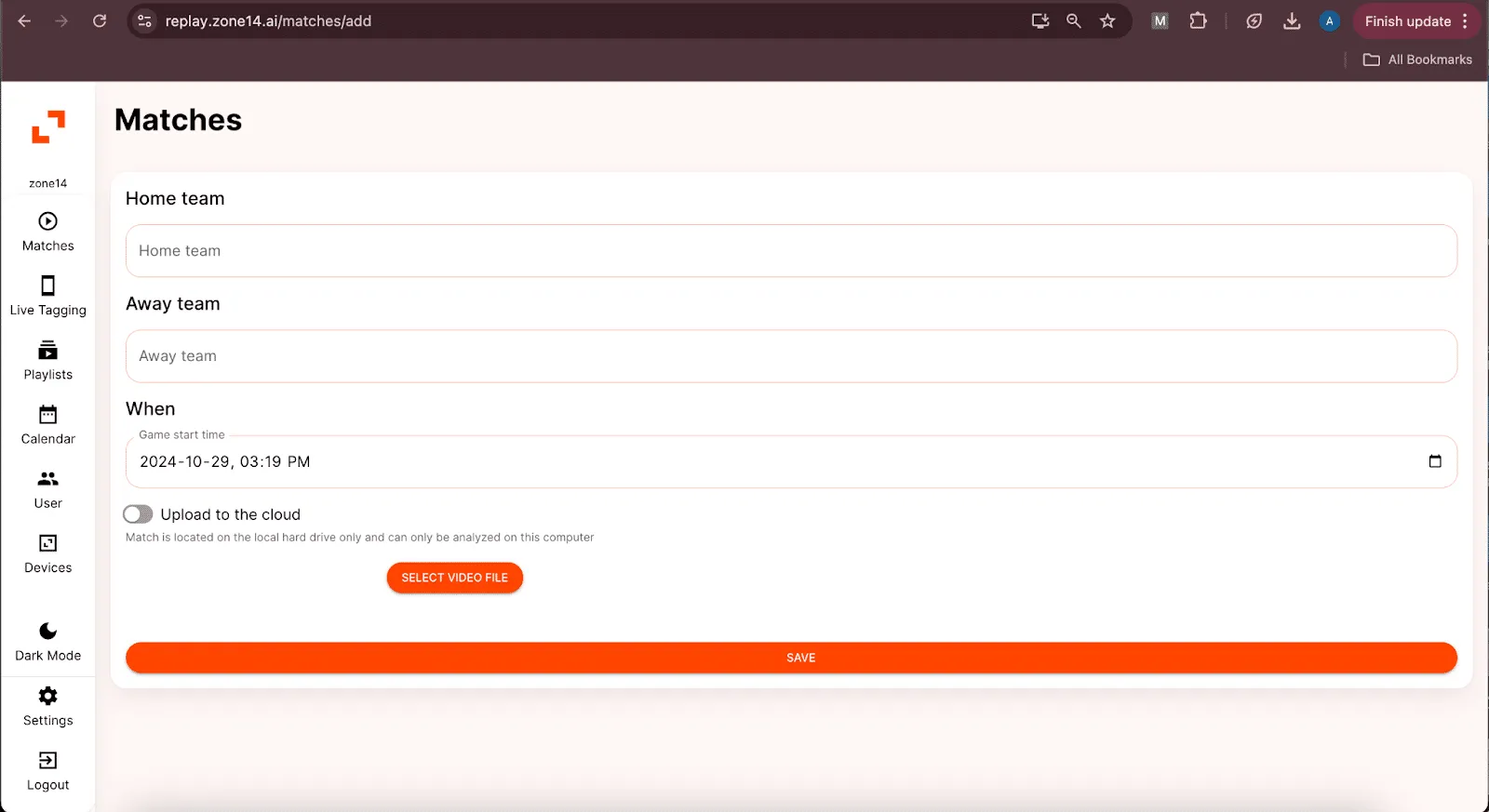
After you click the “+” sign, a window appears. Select the home and away team and, if necessary, schedule the date and time of the match.
-
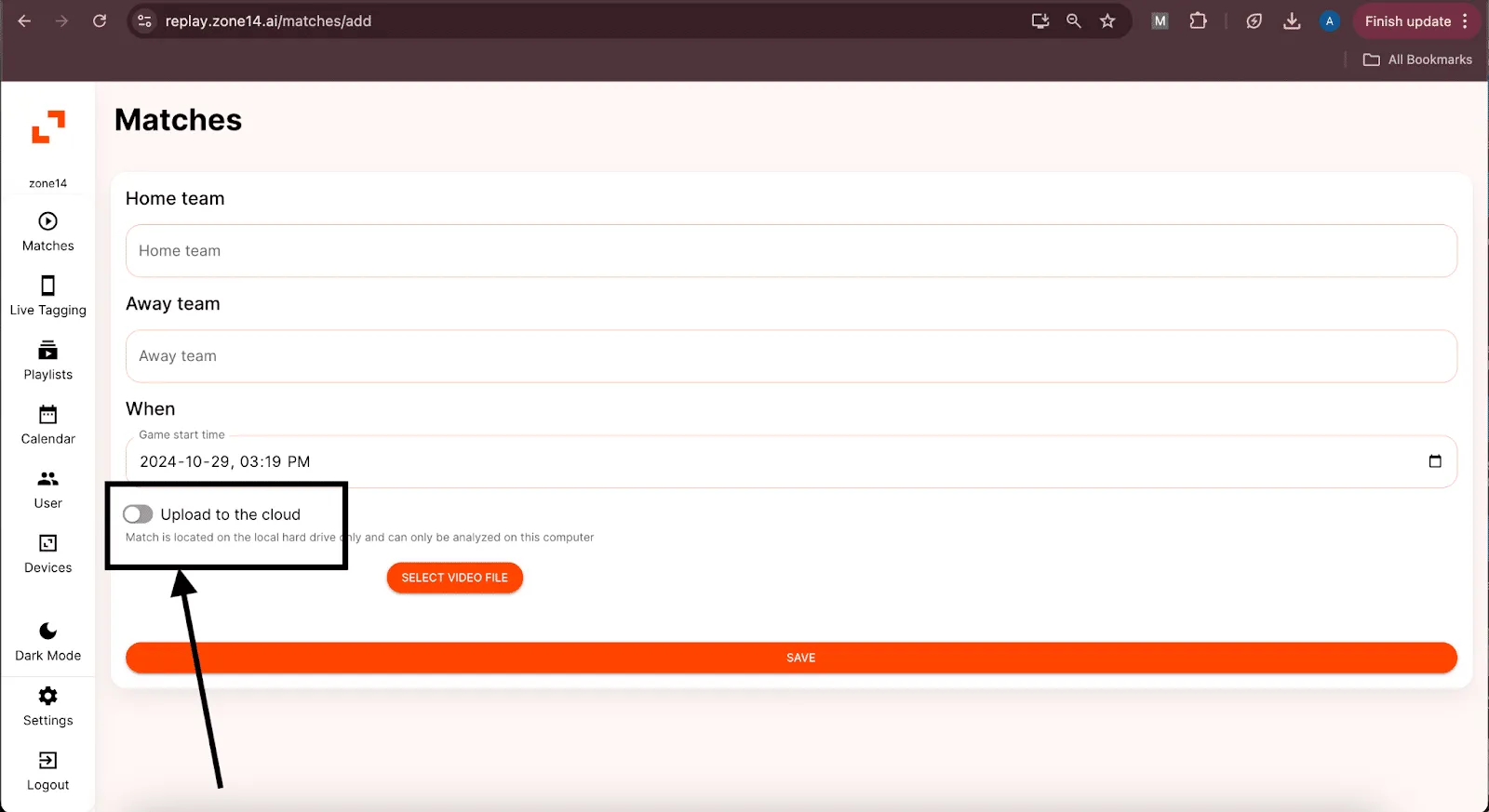
Next, press the button next to “Upload to the cloud”. This reveals the option “Upload via URL”.
-
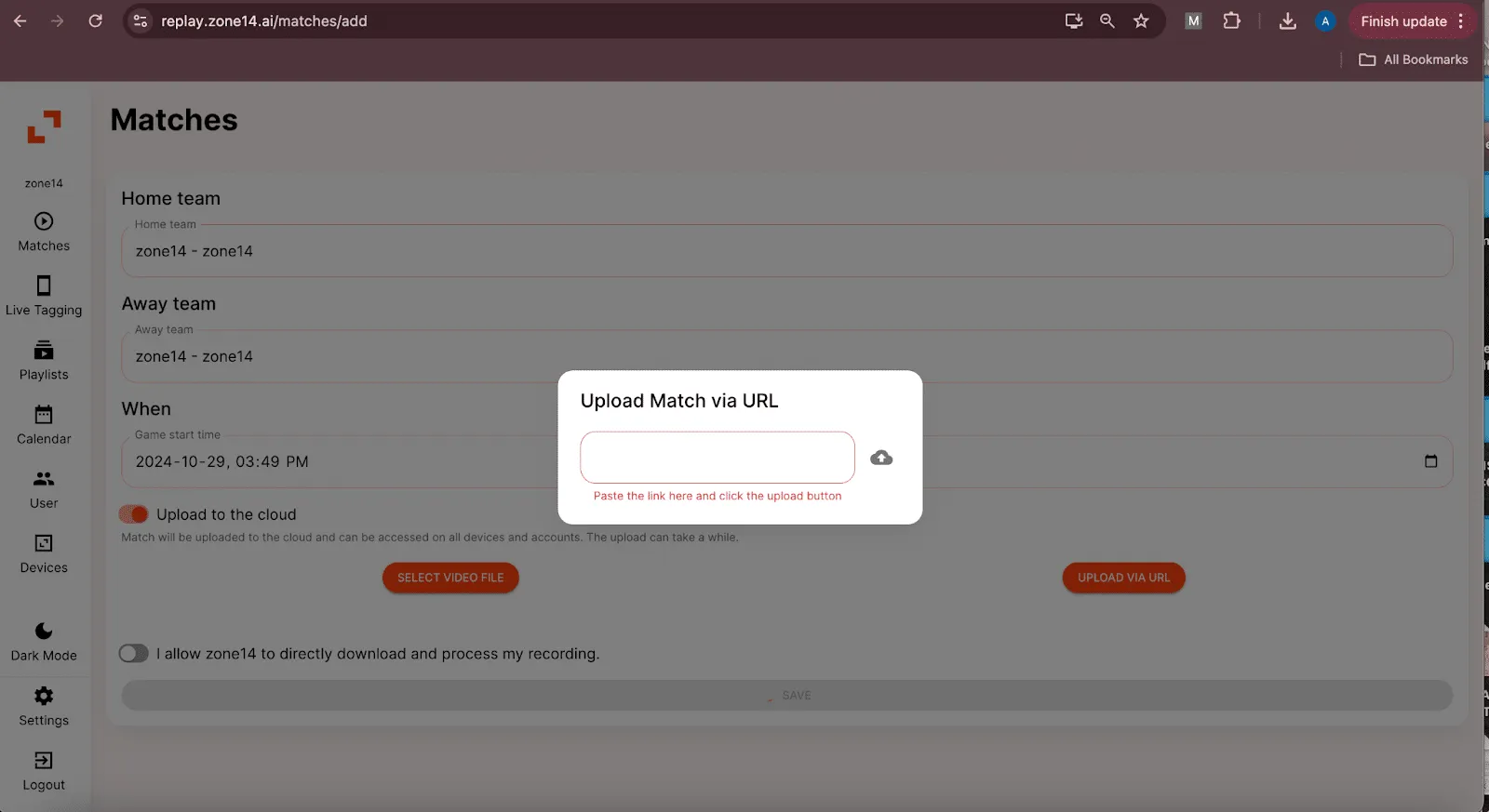
Click the “Upload via URL” button and paste the match link you were given or one of your own.
-
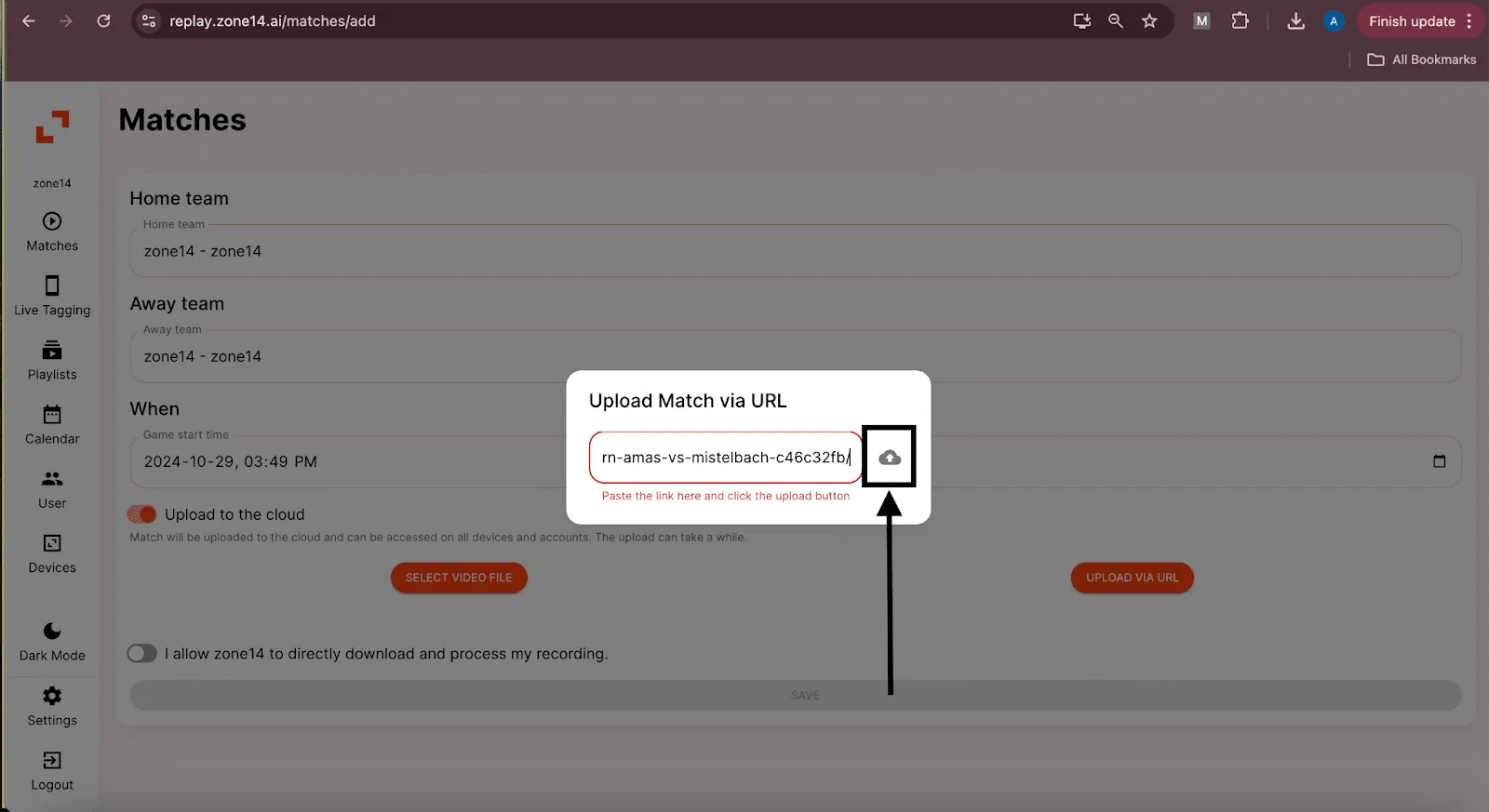
After pasting the link, click the small “Upload” button.
-
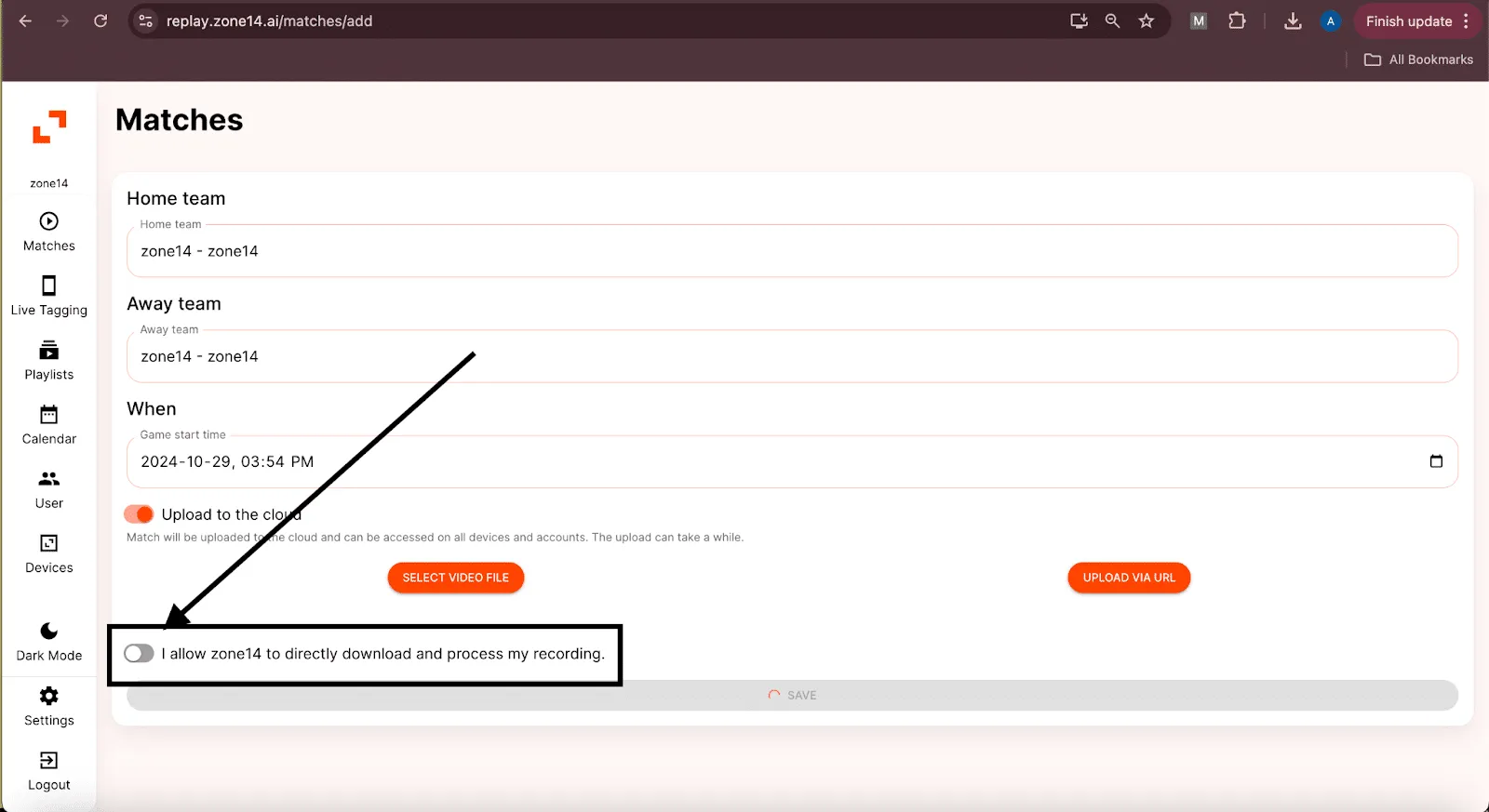
Finally, select the option “I allow zone14 to directly download and process my recording.” Then click “Save”.
-
That’s it! You’re taken back to your club’s homepage, where you’ll find your match.