All guidesGuide
Save videos to Google Drive to save space
Wondering how you can save your videos to Google Drive instead of your mobile phone to save space? You'll find the answer here.
In this guide, you’ll learn how to save video clips to Google Drive!
We’ll walk you through each step, from uploading your files to sharing them securely. This way you access your clips anywhere and save valuable space on your device. Let’s get started!
1. Open Google Drive
Go to Google Drive in your web browser. If you don’t have a Gmail account yet, create one first here.
2. Sign in to your account
Sign in with your Google account. If you don’t have one, create an account first.
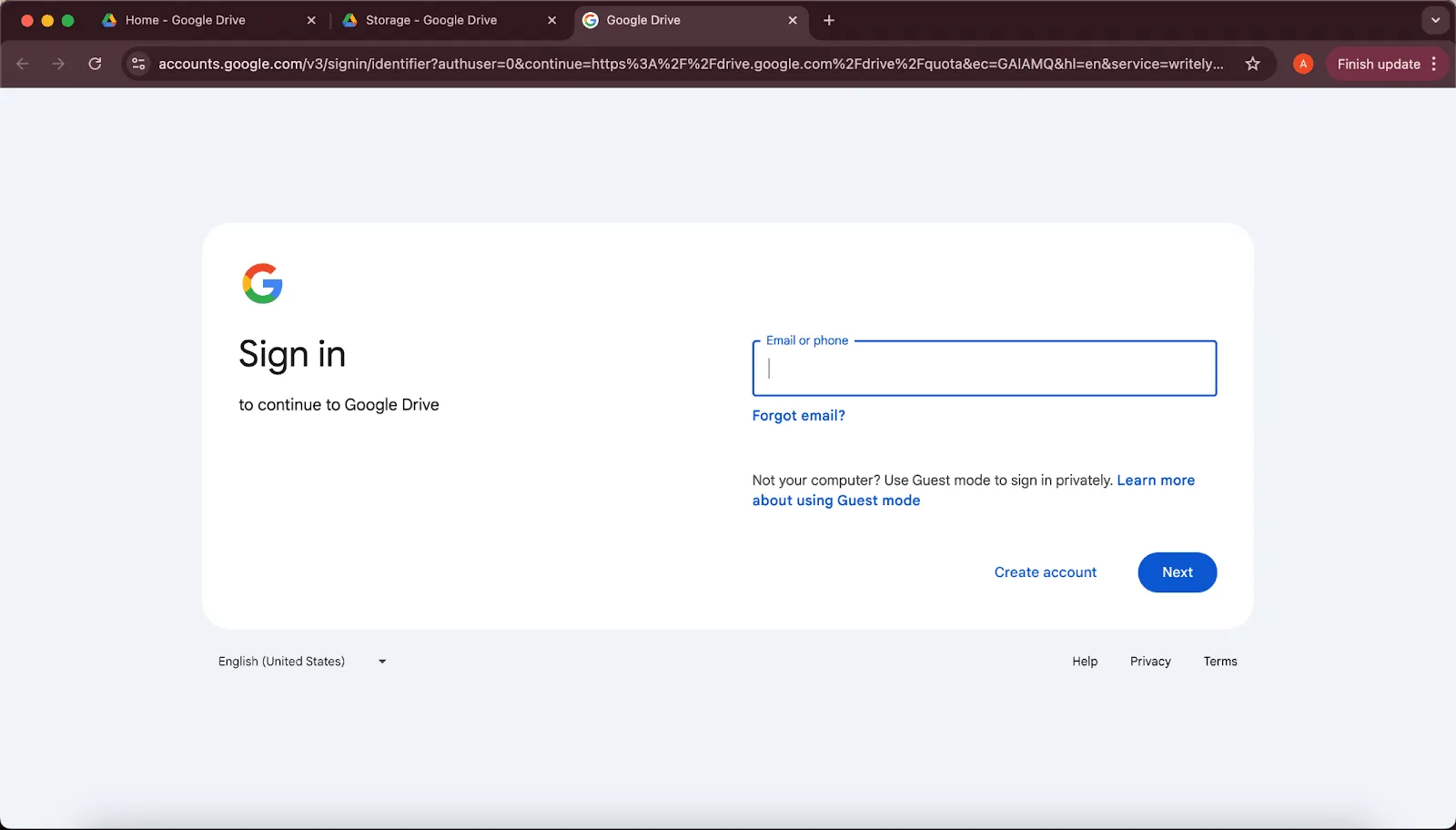
3. Upload your video clip
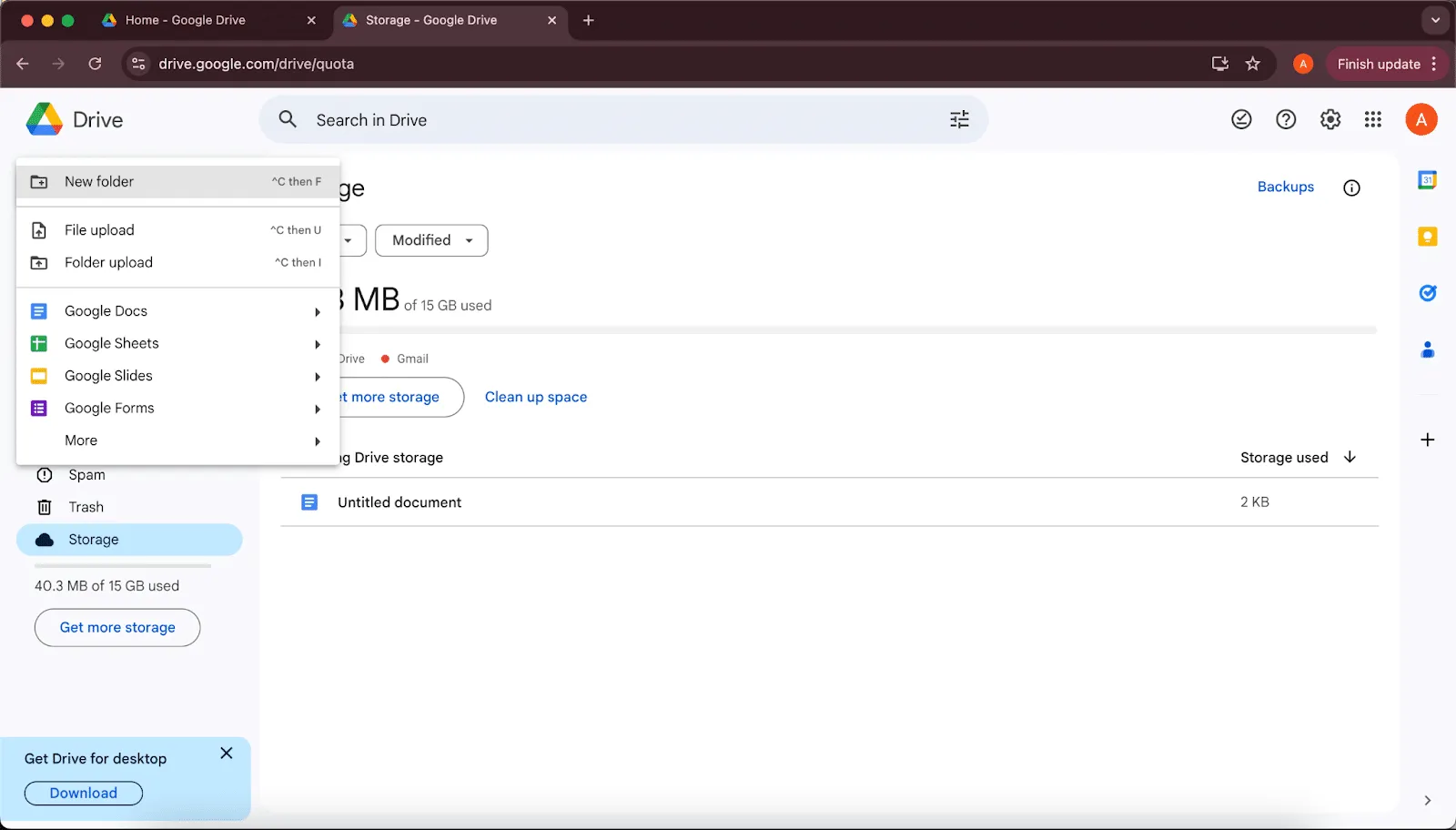
- Click the “+ New” button on the left.
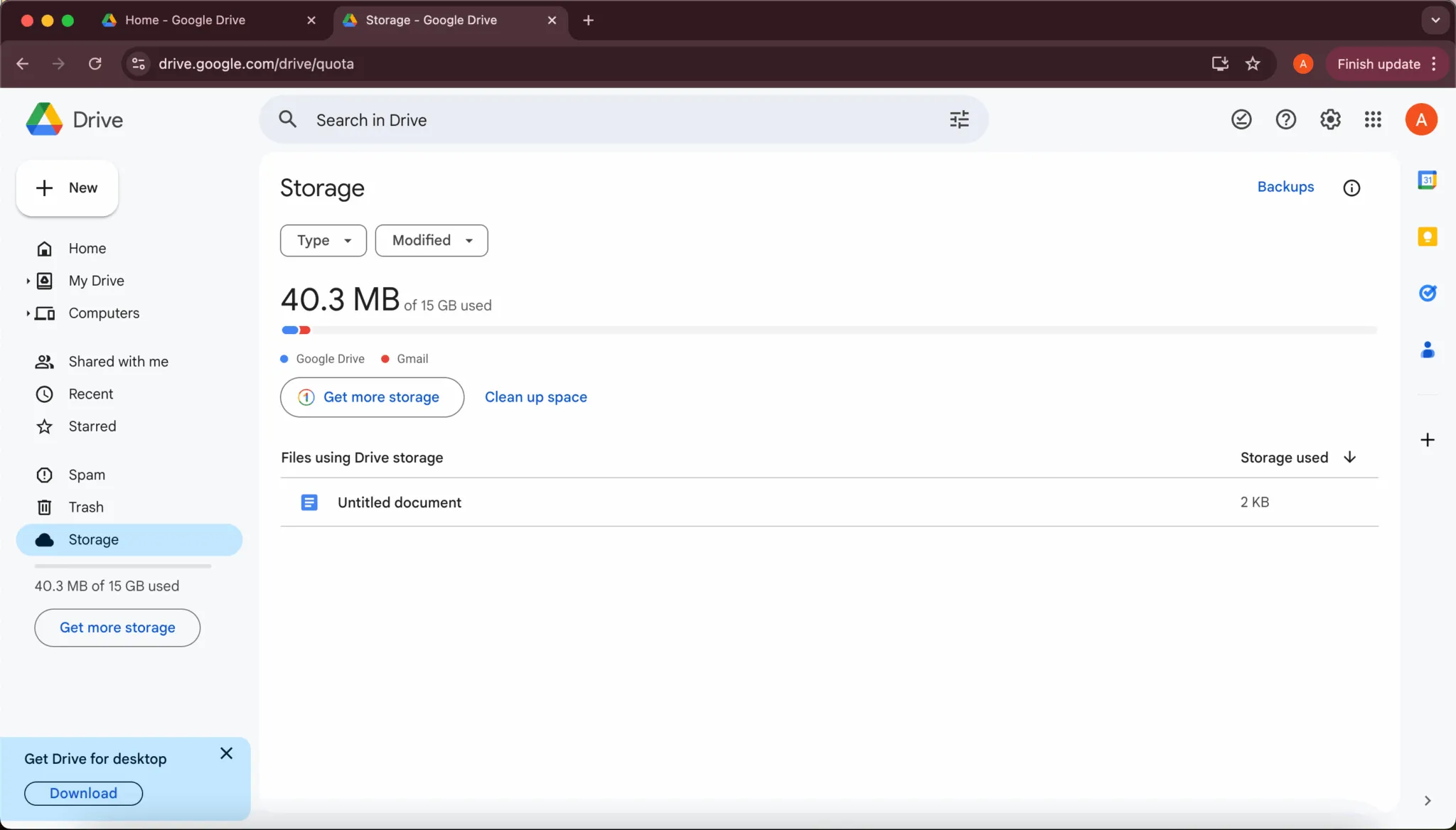
- Choose “File upload” for a single video or “Folder upload” for several videos.
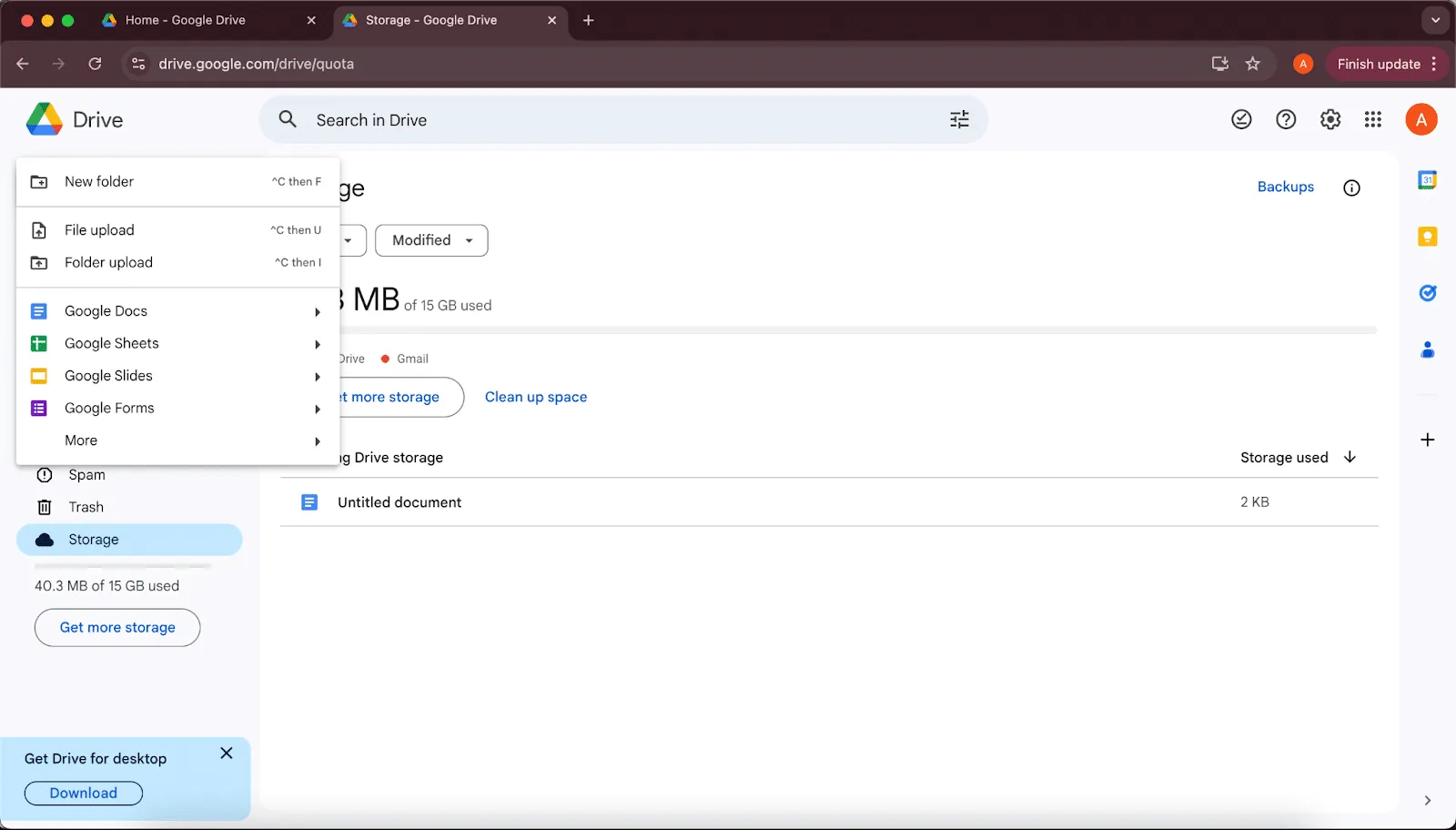
- Select the video clip(s) on your device, and the upload starts.
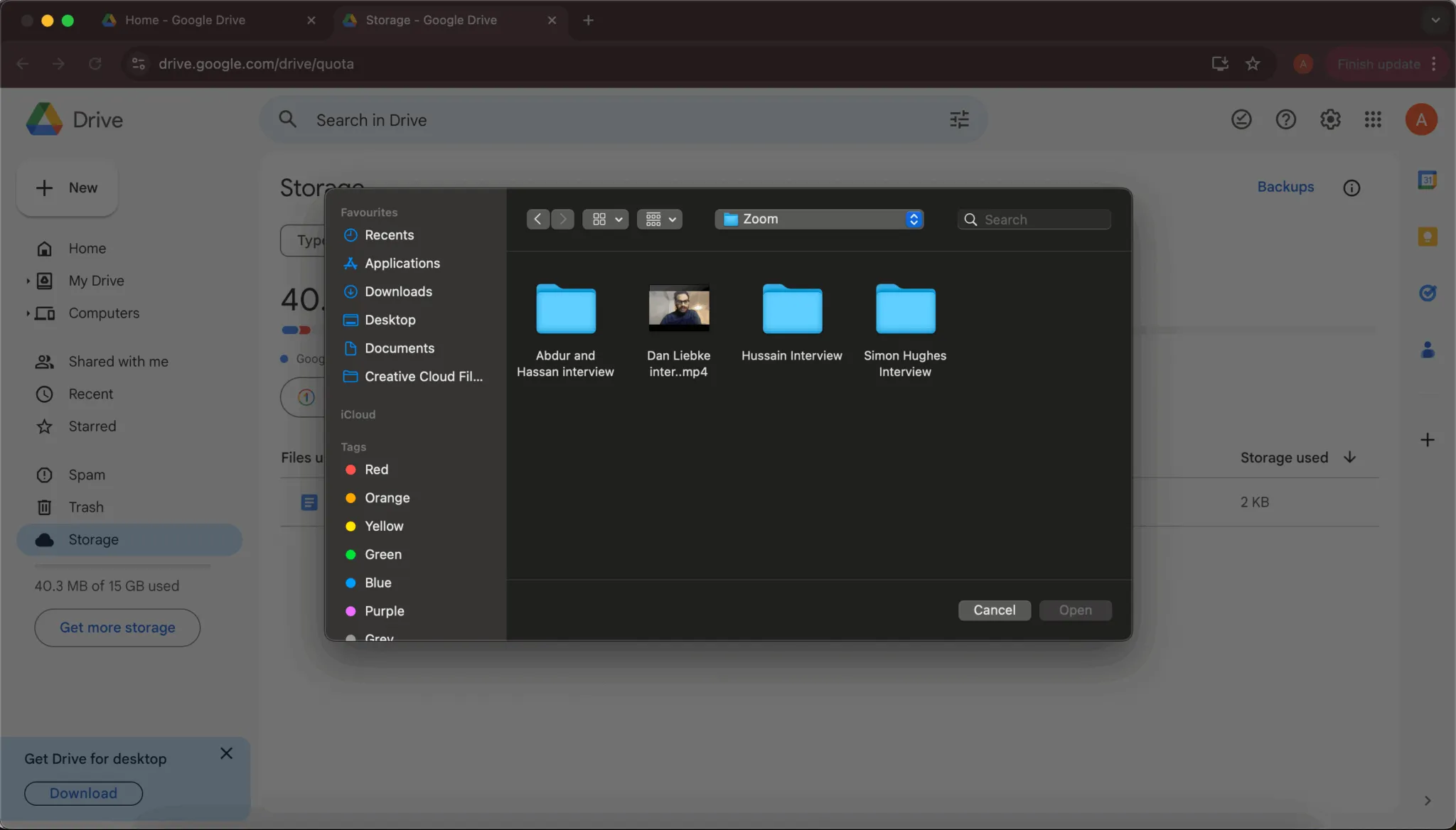
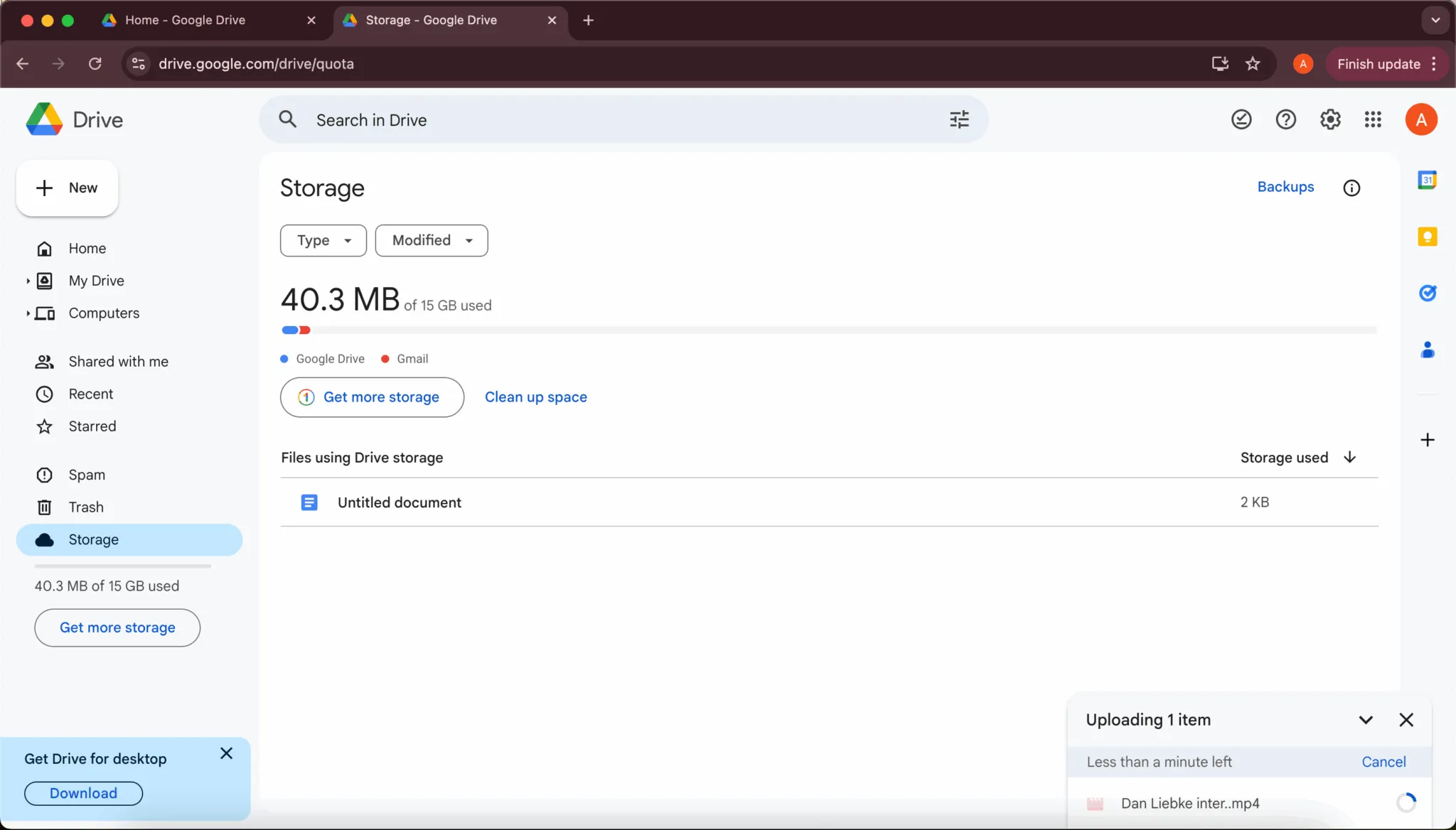
4. Organise your videos (optional)
- Create folders to keep your videos organised. Just click “+ New” and select “Folder”.
- Drag your uploaded clips into the folder, or right-click them and select “Move to”.
5. Open and watch your videos
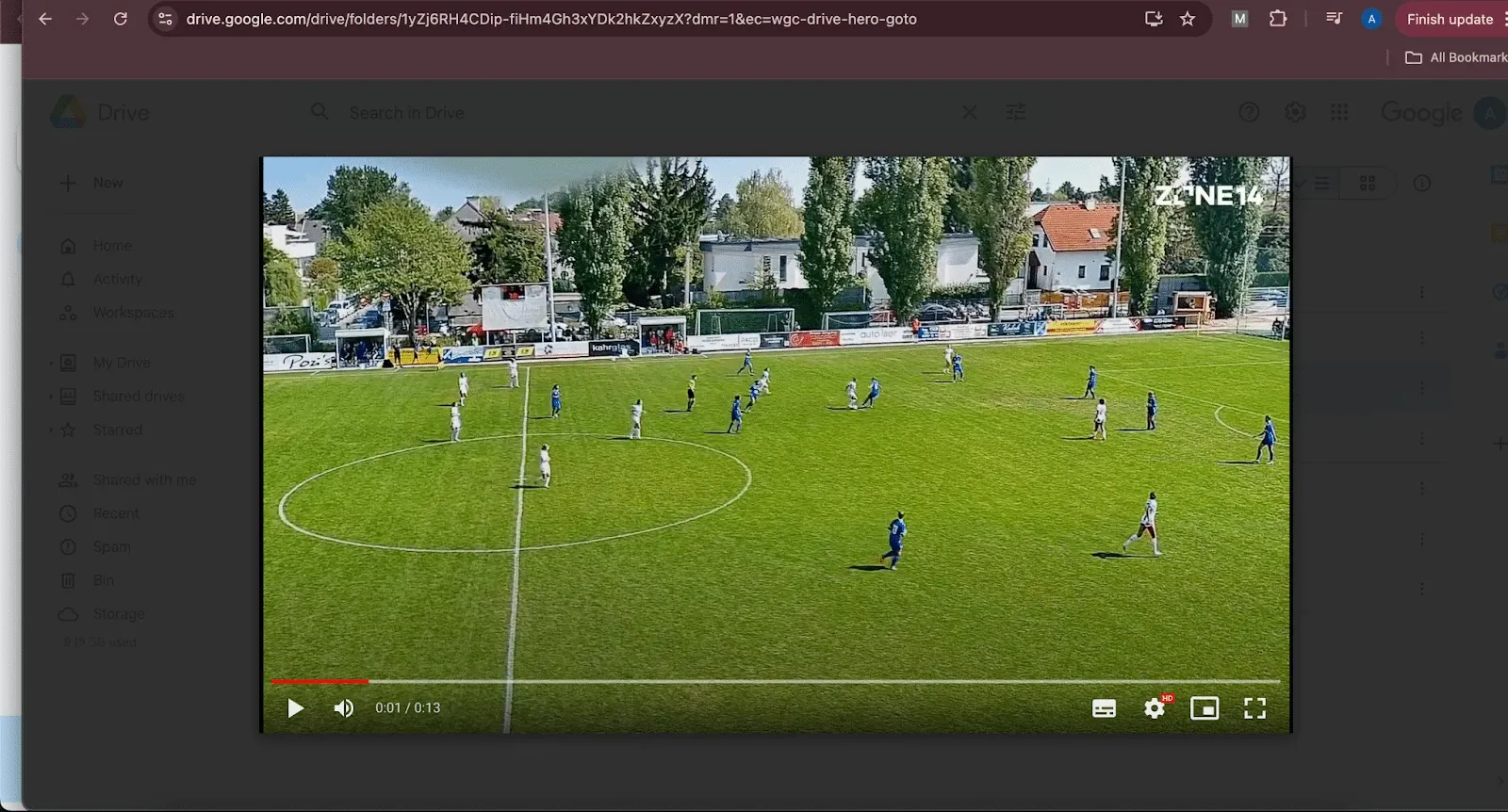
- Once uploaded, your videos are available in Google Drive on every device where you’re signed in to your Google account.
- To play a video, simply click on it, and Google Drive’s built-in video player opens.
6. Share videos on your computer
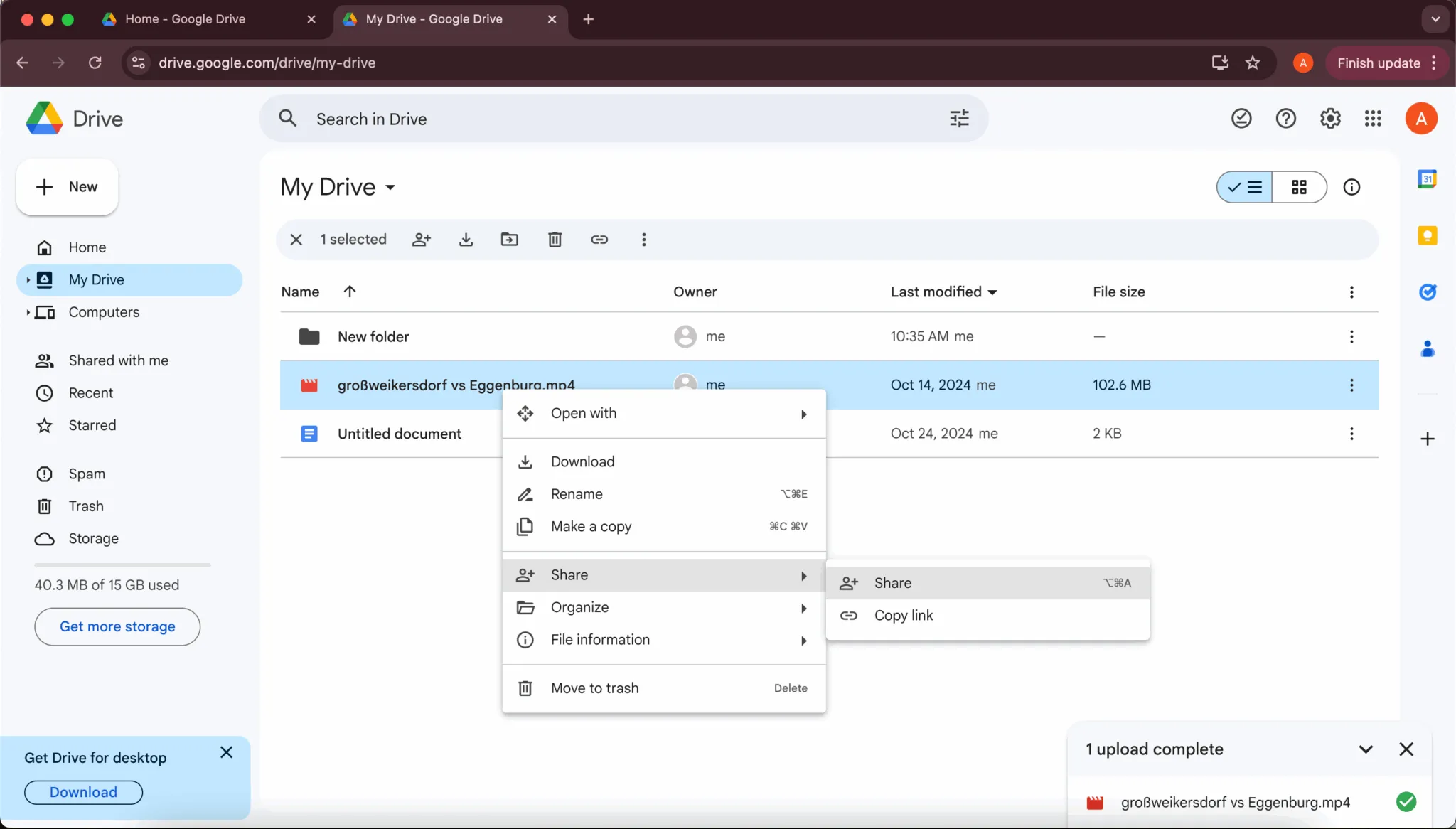
- Right-click the video file you want to share, then select “Share”.
- Enter the email addresses of the people you want to share it with, adjust the permissions (view, comment or edit) and click “Send”.
7. Free up space on your device
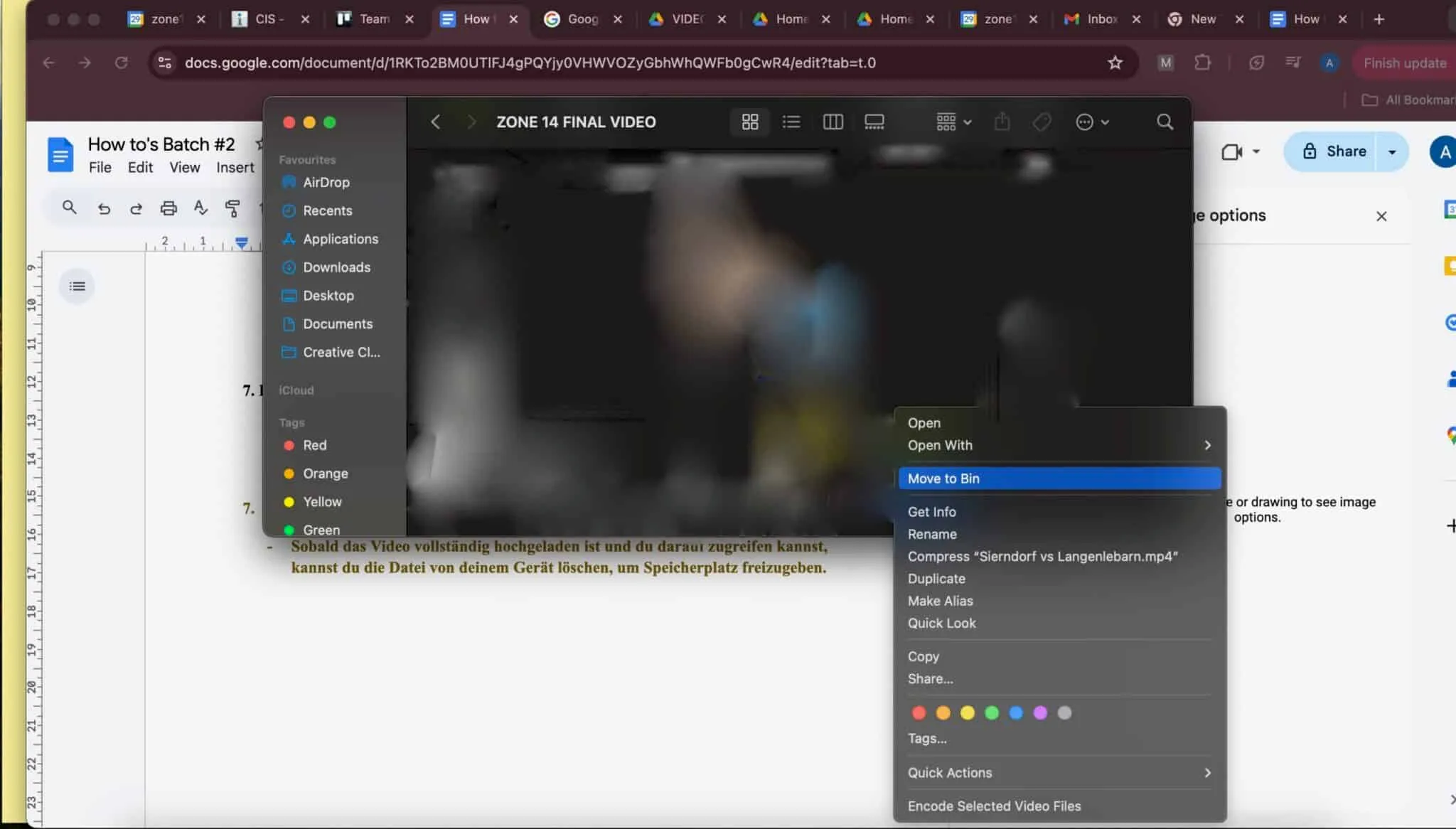
- Once the upload is complete, delete the video clip from your device to free up space. Just make sure it’s fully uploaded and available in Google Drive first.
And that’s it: now you save your video clips securely to Google Drive and access them from anywhere!