All guidesGuide
How to subscribe to an external calendar in zone14 REPLAY
Subscribe to an external match calendar in zone14 REPLAY via iCal: your matches are scheduled automatically and synced every 15 minutes.
Want to save time scheduling your matches? With the iCal calendar integration, you can subscribe to an external match calendar in zone14 REPLAY and automatically keep your match schedule up to date.
Step 1: Open the match calendar
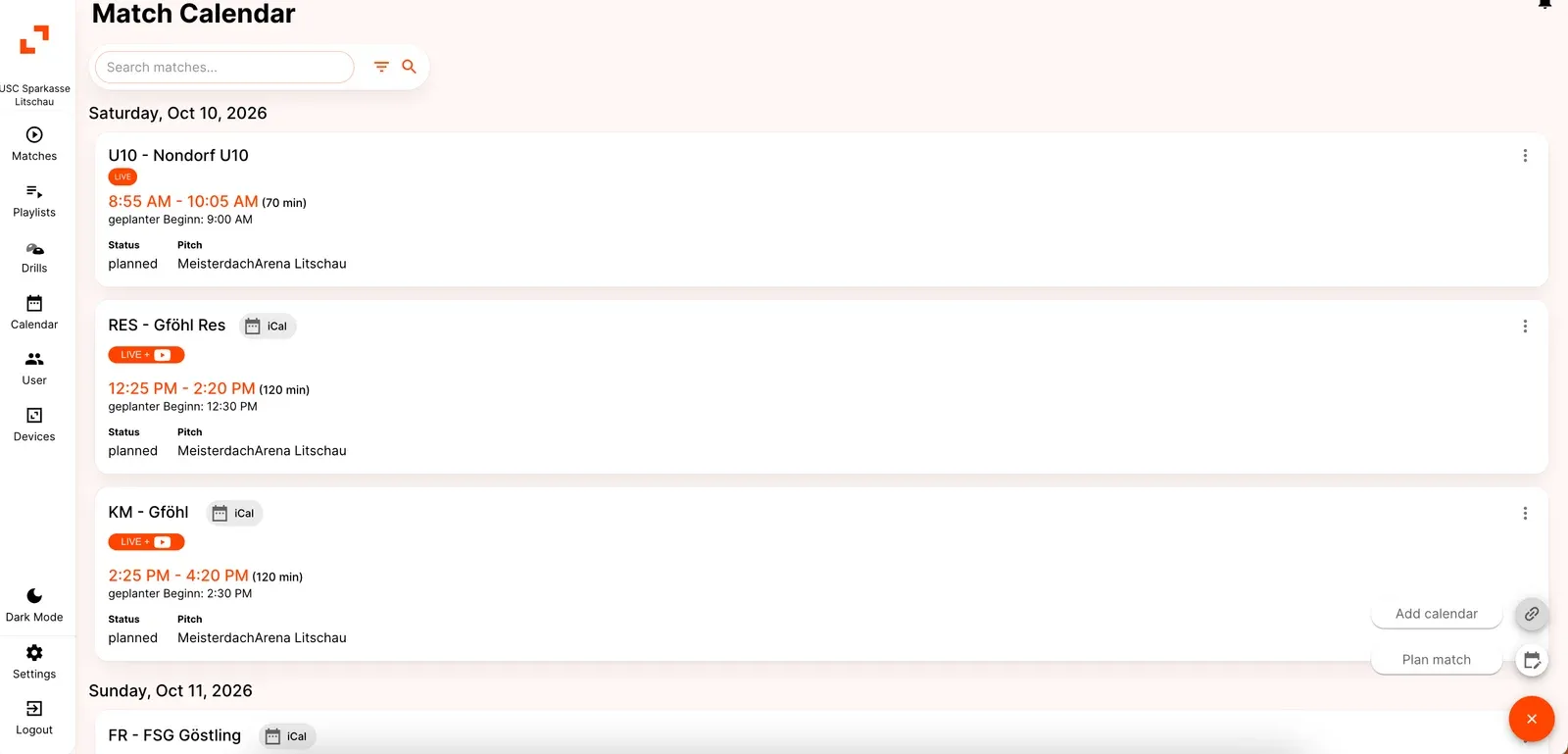
First, log in to zone14 REPLAY and navigate to the Match Calendar.
- Click the + icon in the bottom-right corner.
- Select Add Calendar.
- Click Add New to subscribe to a new calendar.
Step 2: Subscribe to your external calendar
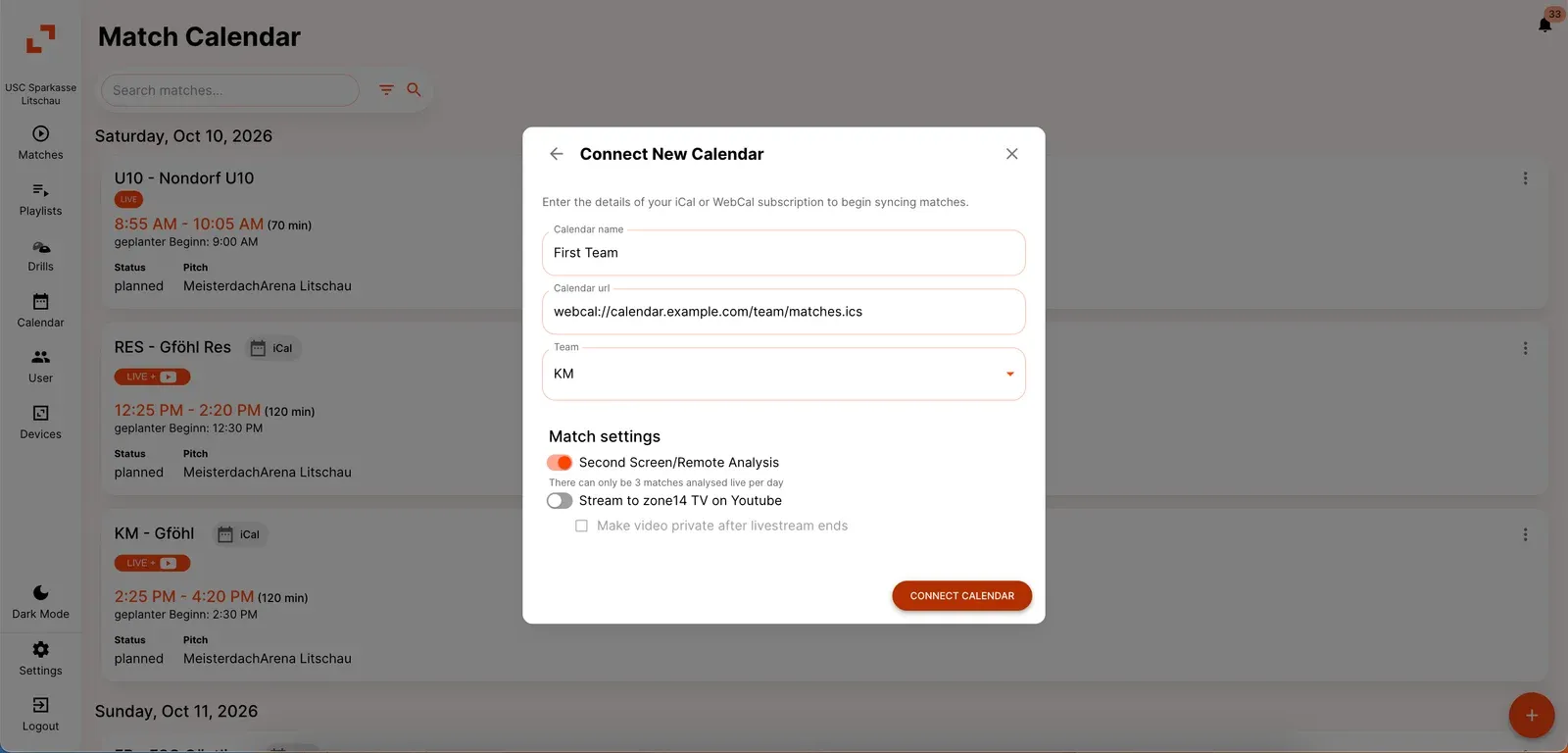
Enter the details of your iCal or WebCal subscription:
- Calendar Name: Give your calendar a name.
- Calendar URL: Paste your external calendar link (e.g.
webcal://...). - Team: Select the team you want to associate with the calendar.
Step 3: Configure your match settings
Before subscribing to your calendar, you can choose the default settings for your imported matches.
- Second Screen / Remote Analysis: Enable live match analysis (maximum 3 matches per matchday).
- Stream to YouTube zone14 TV: Automatically livestream your matches.
- Make Video Private After Livestream: Set your YouTube video to private once the livestream ends.
Once everything is configured, save your calendar to start synchronisation.
Step 4: Review and manage your imported matches
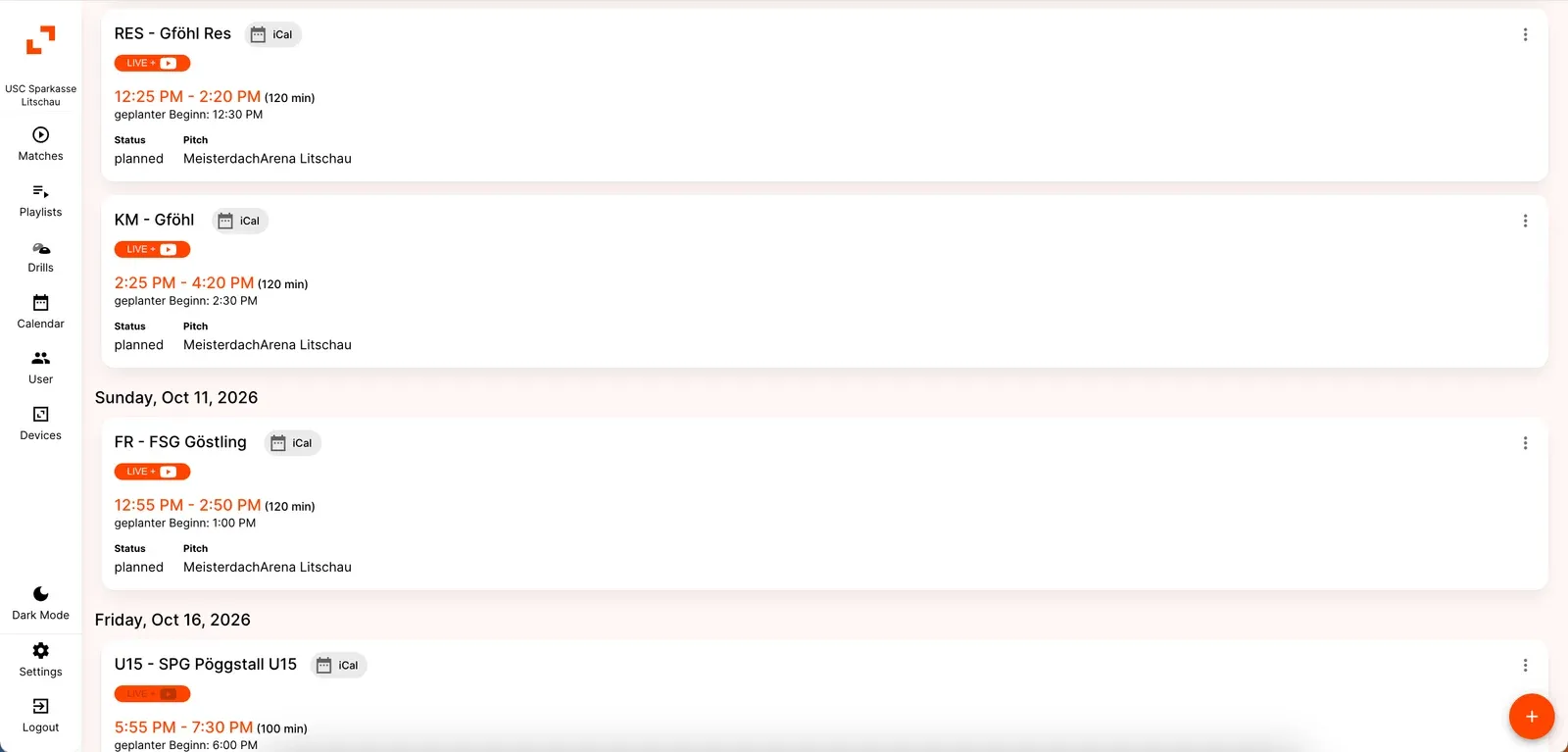
Once subscribed, your matches will automatically appear in the REPLAY Match Calendar, marked with an iCal tag.
REPLAY checks your external calendar for updates every 15 minutes and automatically synchronises any changes.
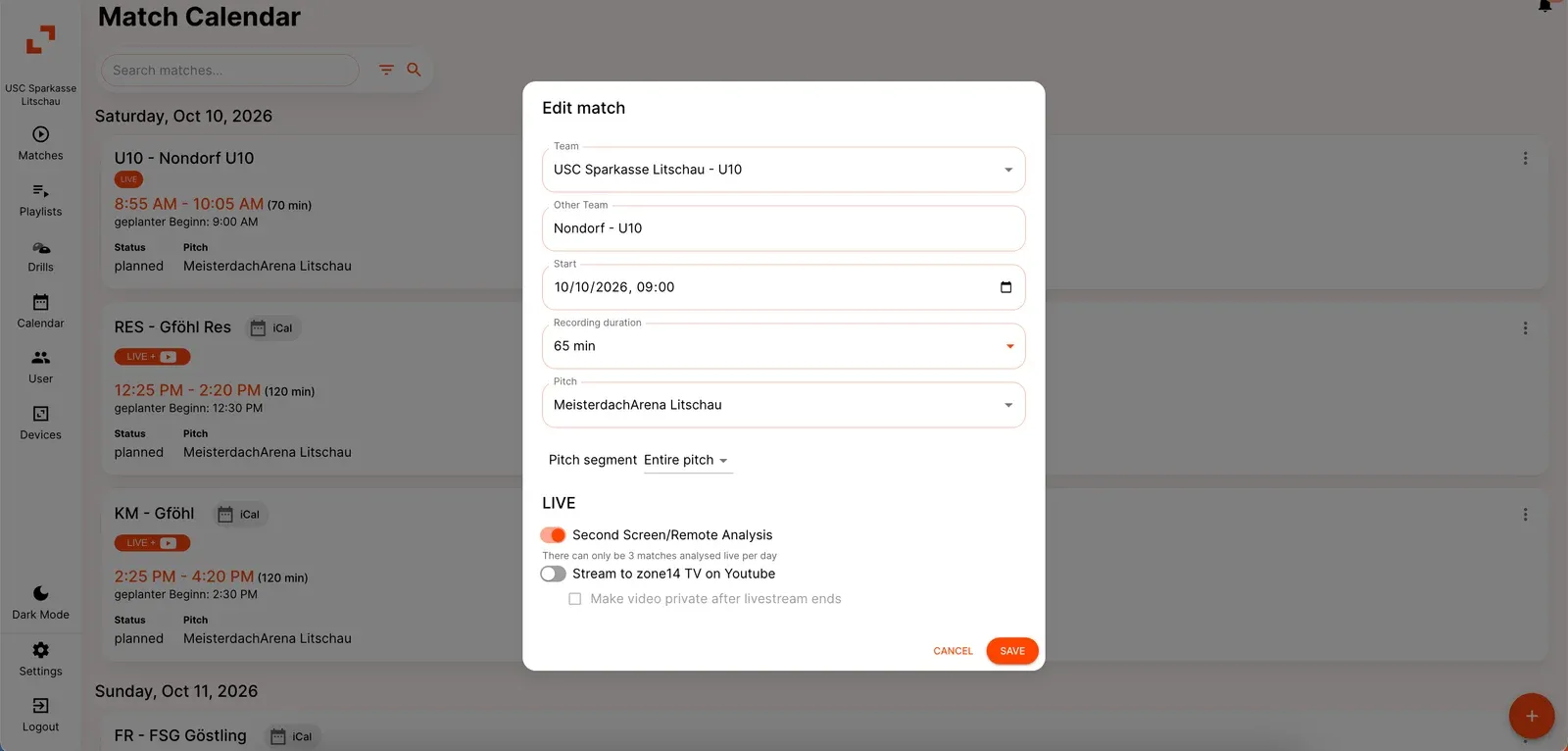
You can also open individual imported matches directly in the Match Calendar to review and adjust their match settings whenever needed.
To manage your subscribed calendars, simply return to Match Calendar → + → Add Calendar.