← All guidesGuide
User management in zone14 REPLAY – Assigning user roles correctly
How to assign user roles in zone14 REPLAY: what admins, coaches/analysts and players can do, and how to add new users step by step.
Efficient video analysis in a club is teamwork. But not everyone on the team needs the same access rights and editing options. A player may only want to see their own scenes, while the assistant coach needs full analysis rights but shouldn’t manage members.
That’s exactly why zone14 REPLAY has an intelligent system for user roles. With it, you structure collaboration within your club clearly, protect sensitive data and give everyone exactly the tools they need for their tasks.
This guide explains the different roles and shows you step by step how to add and manage new users.
Why are different roles so important?
-
Control & security: You decide who can see and edit what.
-
Clarity & focus: Each user only sees the features that are relevant to them. This avoids confusion, especially for players or members who are less tech-savvy.
-
Structured collaboration: Clear roles create clear responsibilities in the analysis process.
Part 1: User roles in zone14 REPLAY in detail
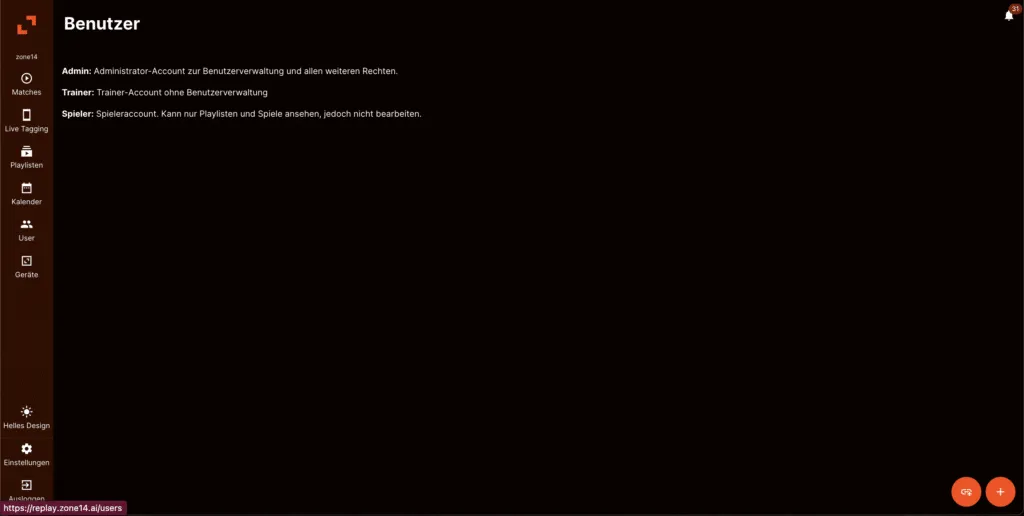
Your zone14 club account has three roles with different permissions by default. Know the difference and you’ll assign them correctly.
1. The administrator (admin)
The admin is the “boss” of the account. This role is meant for the people with primary responsibility in the club, such as the sporting director, the head coach or a dedicated video analyst.
-
What can an admin do?
-
Everything!
-
Manage users: invite new members, remove existing members and change their roles.
-
Create matches & analyses: upload, tag, clip and analyse videos, create playlists and share them.
-
Edit club settings: change the club name, logo and other basic account settings.
-
-
Who should you give this role to?
- Only 1–2 absolutely trustworthy people who oversee the entire analysis workflow and member management.
2. Coaches/analysts
Coach is the standard role for anyone who actively works with the video footage.
-
What can a coach do?
-
Analyse & create: watch all matches, tag them, create clips, analyse them with drawing tools and put together playlists.
-
Share content: share their own analyses and playlists with other members (e.g. players).
-
What can’t they do? Invite or remove users, or change basic club settings.
-
-
Who should you give this role to?
- Coaches, assistant coaches, goalkeeper coaches, youth coaches or specialised video analysts. They get full access to the analysis tools without putting administrative control at risk.
3. Players
Players only have read access. This role is perfect for players or other passive members.
-
What can a player do?
-
Watch: watch the team’s matches.
-
View shared content: view the playlists and analyses that an admin or coach has explicitly shared with them or with the whole team.
-
What can’t they do? Create their own analyses, set tags, cut clips or change anything.
-
-
Who should you give this role to?
- All players on your team. This way your visual feedback reaches them, and nobody changes or deletes an analysis by accident. The role is also ideal for board members who just want an overview.
Part 2: How to add new users step by step
Inviting new members to your zone14 REPLAY account is simple. Only the admin can do it.
Step 1: Go to user management
-
Log in to your zone14 REPLAY account on your computer.
-
Click on “User”.
-
Click the plus sign at the bottom right to create a new user.
-
Click the icon to its left to invite a user via link.
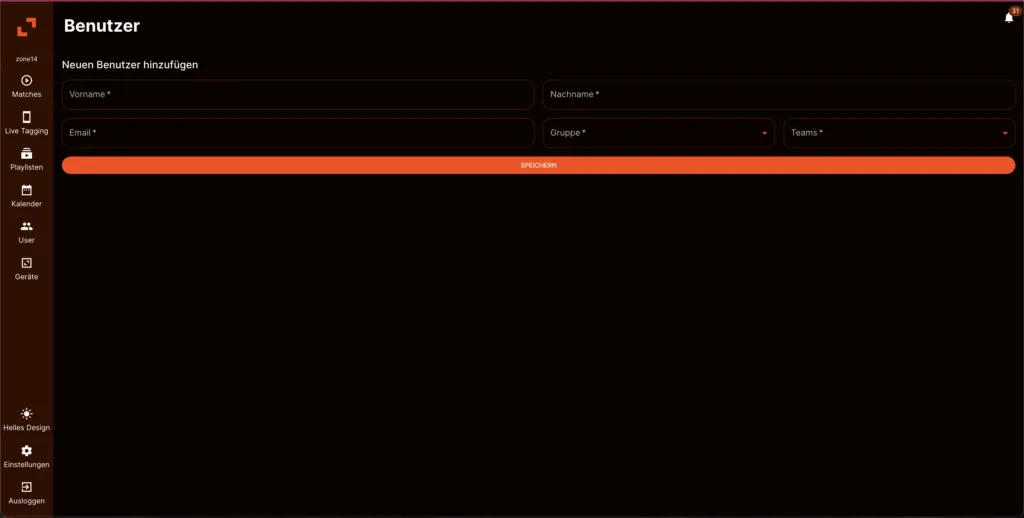
Step 2: Enter the details and select the role
-
A window opens where you enter the new person’s details.
-
Enter the first and last name.
-
Select the role from the drop-down menu: Admin, Coach or Player. Think carefully about which permissions the person really needs.
-
Specify which team the user is responsible for.
-
Click “Save”.
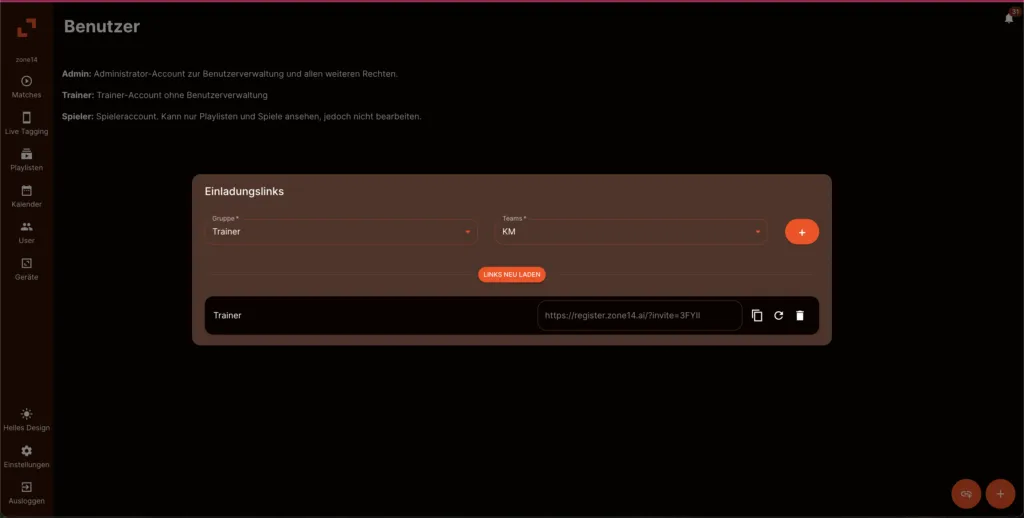
Step 3: Invite new users via a link
- Tap the button to the left of the plus sign.
- Specify the role and the assigned team.
- Copy the automatically generated link with the left icon (the rectangle in front of a smaller rectangle).
- Send the link to the person. They use it to log in to REPLAY.