- Log in to the zone14 Replay App using your log-in details.
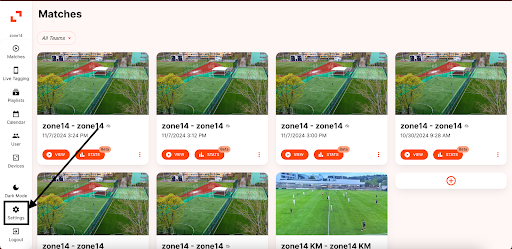
- On your club’s homepage, locate the toolbar on the left side, just below the orange zone14 logo at the top. Find and click the “Settings” button.

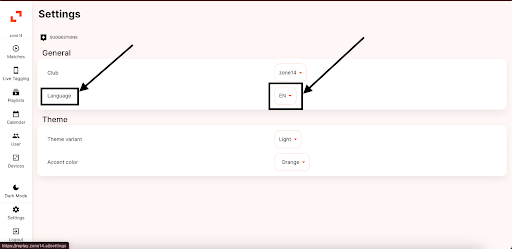
- Now, on the Settings page, you’ll see two sections labeled “General” and “Theme.” In the “General” section, find the “Language” option on the left. To the right, there’s a small box with a downward arrow. Click on that box.
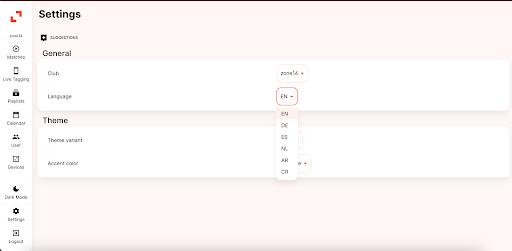
- After clicking the dropdown menu, a list of languages will appear. The options include: EN For English DE für Deutsch- ES für Spanisch- NL für Niederländisch – AR für Arabisch – CR for Croatian
- Select the relevant language from the list.

- After selecting your preferred language, the Replay page will automatically update to display in that language. Stay tuned for more languages coming to REPLAY soon.
Categories
Changing to another language on REPLAY
The zone14 Replay App now has several language options for users from different countries. Here’s how to change the app’s language.